Local pickup turns a Shopify store into a faster, cheaper way to get orders to shoppers. Customers skip shipping fees, merchants save on last-mile costs, and the physical store gets foot traffic that often leads to extra in-store sales.
But here’s the thing: Shopify local pickup is more than a checkbox in checkout settings. It’s a fulfillment workflow that touches inventory, locations, staff roles, and customer emails. Done right, it’s a clean omnichannel win. Done wrong, it leads to stockouts, confused buyers, and frustrated store staff. This guide covers everything: what the native pickup option does, how to add local pickup on Shopify step by step, when apps are worth it, and which numbers to track.
What Is Shopify Local Pickup?
Shopify local pickup (also called Shopify in-store pickup or Shopify buy online pickup in store) is the built-in way to let buyers order online and grab their items from a physical store. In short, it’s Shopify’s BOPIS (Buy Online, Pick Up In Store) workflow. Once pickup is turned on for a location, customers can choose “pickup” instead of “shipping” at checkout, pick which store to visit, and wait for the order to be marked ready before coming in. Two things matter:
- It’s tied to locations, not just a shipping method. Pickup uses real store locations, their stock, and their fulfillment settings.
- Mixed carts work fine. A buyer can ship some items and pick up others in the same order. Store transfers also let one location offer pickup even when stock has to come from another spot first.
Don’t mix up local pickup with pickup points. Pickup points are a separate feature for shipping to outside locations like parcel shops or lockers. In-store pickup is about grabbing the order from a merchant’s own store, and that’s the focus here.
Update For Shopify Local Pickup in 2026
Local pickup and BOPIS (buy online, pick up in-store) aren’t a bonus feature anymore – they’re something shoppers just expect. In the US, BOPIS retail sales totaled $154.3 billion in 2025, and the growth isn’t slowing down: analysts expect a 6.41% CAGR through 2030, which would push the market past $292 billion.

This shift isn’t happening on the margins, either. Recent research suggests that over a third of shoppers have used BOPIS in the past six months, and by the end of 2024, more than half of US consumers are expected to have tried some form of online order-in-store pickup. The appeal is simple: skip the shipping fee, grab your order the same day, and pick it up whenever it actually fits your schedule.
For merchants, that shift is a real opportunity, not just a convenience you’re offering. BOPIS now makes up something like 18% of e-commerce revenue comes from BOPIS purchases worldwide – and here’s the part that matters for your bottom line: customers who walk in to grab an online order often leave with more than they came for. So local pickup isn’t just about making checkout easier. Done right, it brings people into your store, lifts your average order value, and helps you put your in-store inventory to better use. 
If you’re on Shopify, turning on Local Pickup is the quickest way to get in front of this. It takes just a few settings in your admin – let customers pick a location, get their order ready in-store, and mark it as picked up, all without leaving your existing setup. Below, we’ll break down how it works, why it’s worth doing, and how to turn this BOPIS demand into an actual growth channel for your store.
Benefits of BOPIS in Shopify Retail
Lower fulfillment costs
Skipping last-mile shipping on pickup orders cuts into one of the biggest line items in ecommerce delivery – last-mile delivery alone can account for over half of total shipping cost. Every order a customer collects in person is one that Shopify doesn’t have to route through a courier.
More foot traffic, more add-on sales
A pickup order gets a customer through the door – something that never happens with a shipped order. That’s a real opening for staff to point out something else on the shelf, and it’s a big part of why BOPIS revenue tends to run higher than the value of the original online order.
Fewer abandoned carts
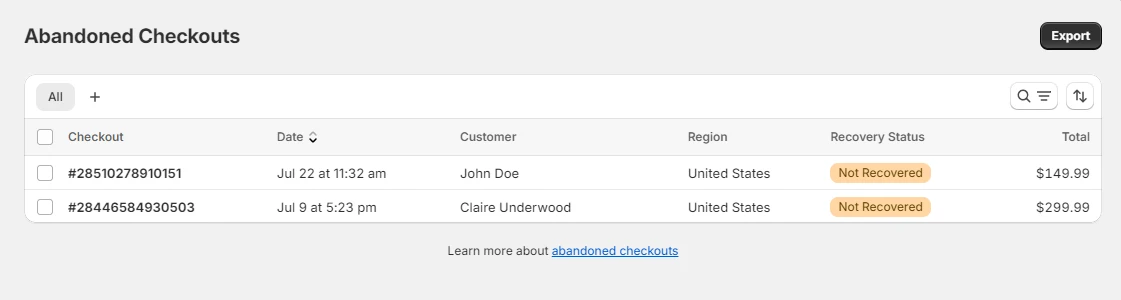
Shipping cost and delivery-date uncertainty are two of the most common reasons carts get abandoned at checkout. Offering a free, same-day pickup option removes both objections in one move.
Better use of store-level inventory
Stock sitting in a physical location isn’t just backup inventory for walk-ins anymore – it becomes fulfillable inventory for online orders too, which matters a lot for merchants who’d otherwise have that stock sitting idle between in-person sales.
Fewer returns
Because customers can look over their order before leaving the counter, they can catch sizing or quality issues immediately – a meaningful advantage over shipped orders, where the return rate runs well above what physical retail typically sees.
A real trust signal
Letting someone reserve an item and pick it up removes the “will it actually be there” anxiety that comes with out-of-stock guesswork – customers know the item’s been set aside before they make the trip.
How to Add Local Pickup on Shopify
Setting up the Shopify local pickup option follows a clear order. Skip a step, and pickup may break in strange ways. Here’s the full flow.
Step 1: Check Locations First
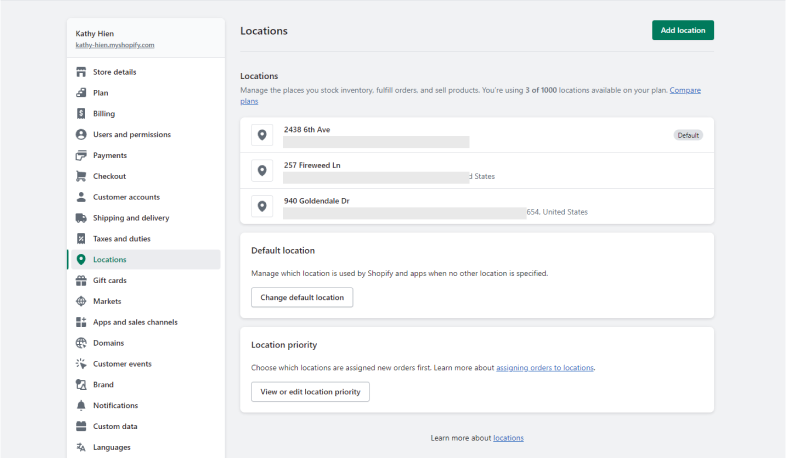
Before touching the pickup setting, head to Settings → Locations. A few things to confirm:
- Each location is active with the right address.
- Each store that should handle pickup is set to fulfill online orders.
- The current plan supports enough locations. Basic, Grow, and Advanced plans allow up to 10 active spots. Shopify Plus supports up to 200.
Shopify turns on online fulfillment for new locations by default. So if a store should only handle pickup (and not ship regular orders), turn that toggle off. Otherwise, floor stock can vanish into shipping orders before pickup customers even show up.
Step 2: Set Up Shipping Profiles and Zones
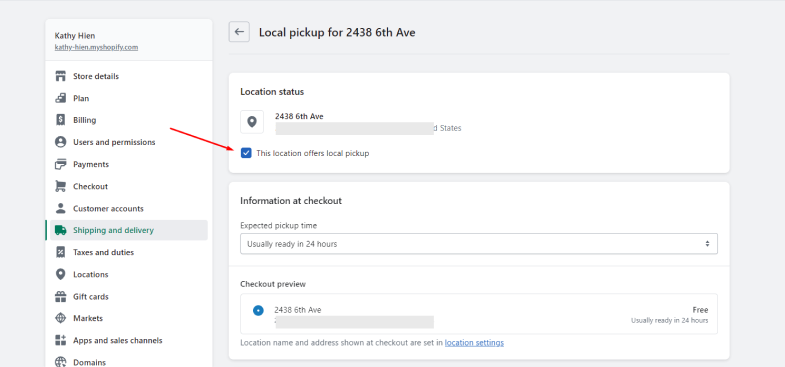
This is the step most merchants skip, and it causes the most pickup headaches.
Each pickup location needs a shipping zone attached to it. Even if there’s no plan to charge shipping from that store, the zone has to exist. Without it, customers may see this error: “Your order isn’t available for pickup. Enter a shipping address.“
The fix is easy. Go to Settings → Shipping and delivery, find the location, and create a zone. No real shipping rate is needed for pickup to work.
Step 3: Turn On the Pickup Option
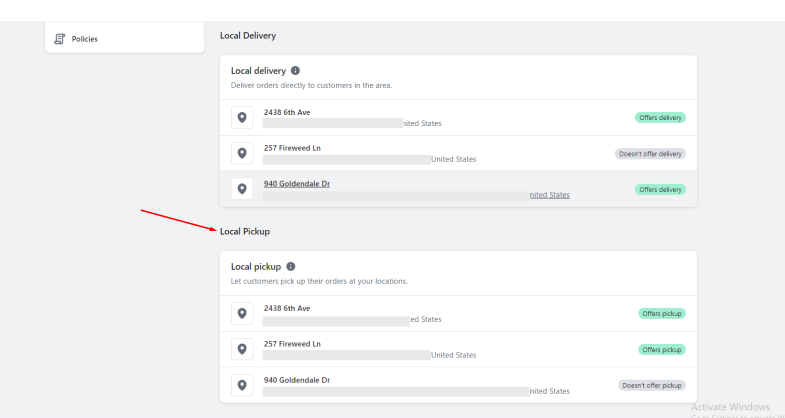
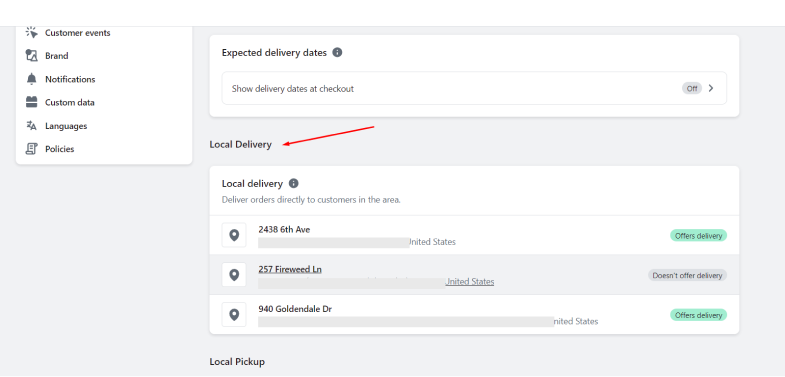 Now for the main part. In Settings → Shipping and delivery, scroll to Pickup in store under additional delivery methods. Click the location to enable, then:
- Turn on the option that lets customers pick up orders at that store.
- Pick the expected pickup date or processing time. Customers see this at checkout, so be honest about the real prep time.
- For multi-store setups, set up store transfers. Choose which other locations can move stock into this pickup spot, and set a different processing time for transfer orders if needed.
- Save.
Repeat this for every store that should offer pickup.
Step 4: Write Clear Pickup Instructions
In the same location settings, there’s a field for ready-for-pickup instructions. This text goes out to customers when their order is ready, so use it to answer real questions:
- Where should they go (front counter, side door, curbside)?
- What hours are pickup allowed?
- What should they bring (ID, order email, etc.)?
- Can someone else grab the order for them?
One thing to watch: these location-level instructions override parts of the main email template. So if pickup emails ever look off, this is the first place to check.
Step 5: Test Like a Customer
Before going live, run a real test:
- Add a product (one that’s actually in stock at a pickup location) to the cart.
- Go through the checkout. Make sure pickup shows up, the right stores appear, and the timing message looks right.
- Try a draft order from the admin. The pickup option Shopify offers also works for draft orders, which helps with phone, chat, or Instagram DM sales.
- Mark the test order ready for pickup, then picked up. Check both emails.
If pickup doesn’t show on product pages, that’s usually a theme problem. Pickup availability on product pages only works on supported themes like Dawn, the Horizon family, and several paid themes. The product also has to be a physical item stocked at a pickup-enabled store.
How the Shopify Local Pickup Option Works at Checkout
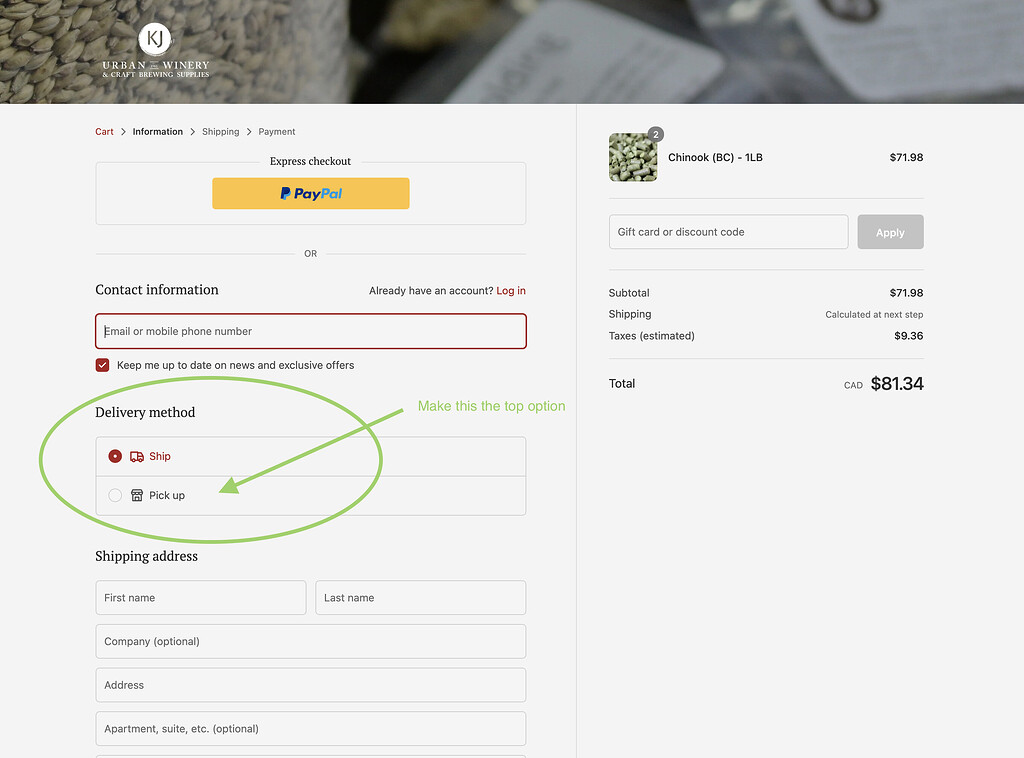
Once pickup is live, buyers see a choice between shipping and pickup during the delivery step of checkout. If they pick “pickup,” Shopify shows nearby pickup locations in their country and displays the processing time set earlier.
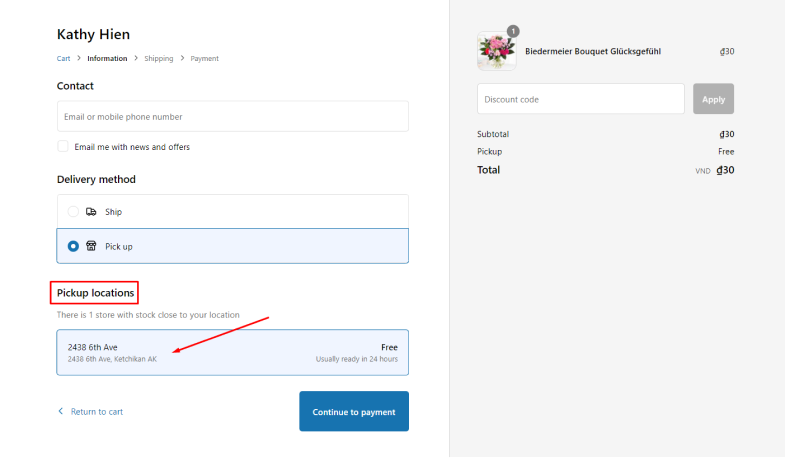
A few details worth knowing:
- Customers only see pickup stores in their own country. Merchants selling overseas should test checkout from different country settings, not just one.
- Shop Pay still works with pickup. Buyers using fast checkout can still pick the pickup option.
- Mixed orders are fine. A buyer can ship some items and pick up others in the same order.
The Two Pickup States
Every pickup order moves through two main stages:
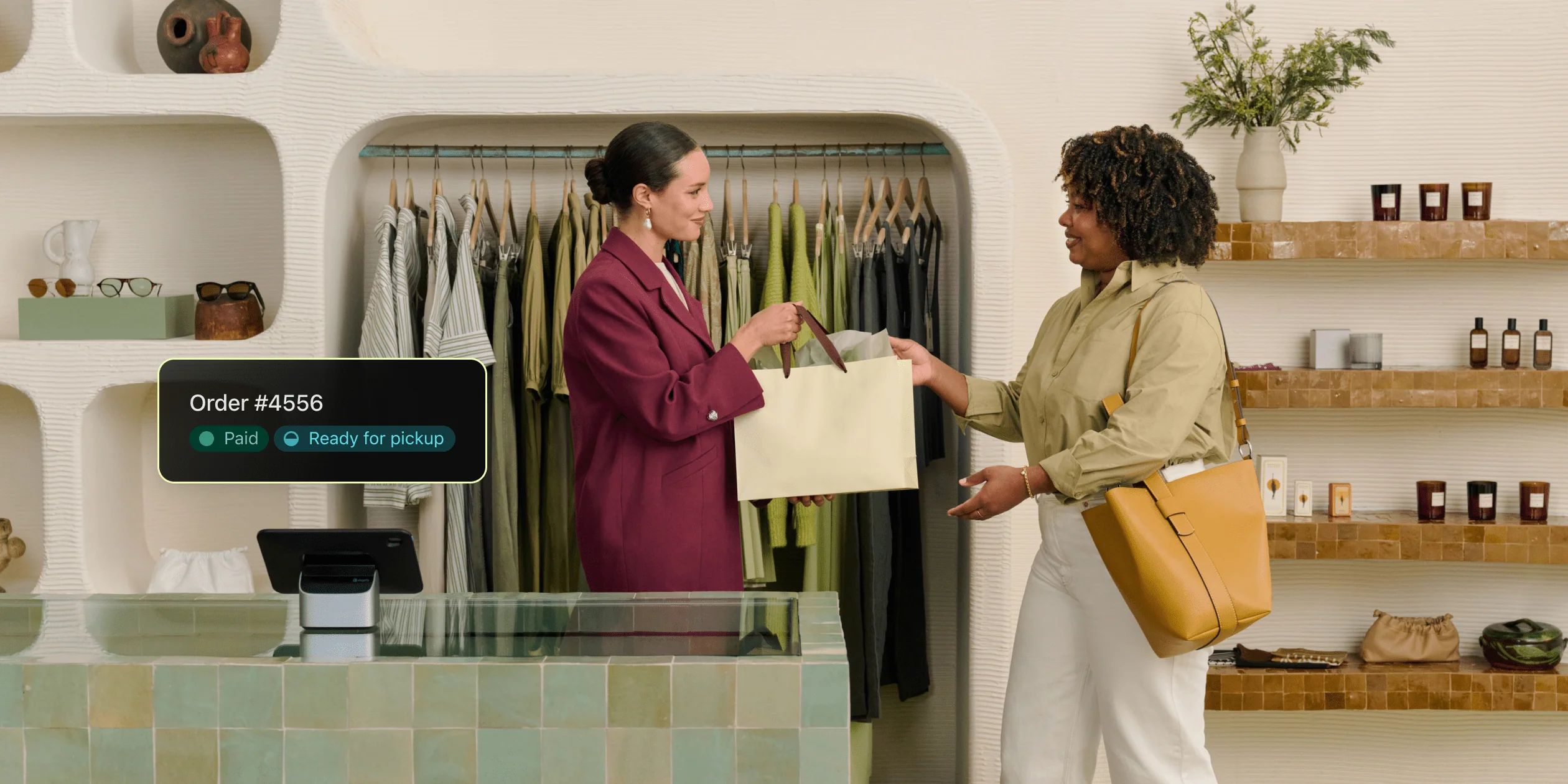
- Ready for pickup. Store staff mark the order ready. This sends the pickup-ready email right away.
- Picked up. Once the buyer grabs the order, staff mark it picked up. A final confirmation email can go out at this step.
When a store transfer is needed, Shopify shows a “transfer required” badge on the order. That badge helps staff avoid telling a buyer to come in before the product has even arrived.
Pickup in Shopify POS
Shopify POS gives an extra layer of control. POS can manage pickup orders right at the register, but only at POS Pro locations. Staff also need the right role to fulfill shipping and pickup orders. A few POS limits worth flagging:
- Subscriptions don’t work for pickup orders made in POS.
- Physical gift cards aren’t supported either.
- Push alerts for pickup orders don’t work on Android devices. iOS gets them.
For shops with several stores, plan POS roles carefully so the right staff at the right stores can actually handle pickup.
Shopify Store Pickup Limits Worth Knowing
Shopify’s built-in store pickup gets the job done, but it has a few rough edges. Spotting them early saves a lot of back-and-forth later.
Setup makes or breaks pickup. If locations, inventory, shipping zones, or fulfillment toggles aren’t quite right, pickup can quietly stop working with no real error to point at. Nine times out of ten, the culprit is a missing shipping zone or a location that isn’t set to fulfill online orders.
Store shelves can get cleared by regular online orders. When one store handles both shipping and pickup, normal ecommerce orders can drain the same stock. For small shops with thin floor inventory, that’s a fast way to oversell. The cleaner fix is to decide which stores ship, which offer pickup, and which do both.
Out-of-stock items can still slip through. With “Continue selling when out of stock” turned on, buyers can place pickup orders even when the shelf is empty. That’s a tough chat to have at the counter.
No date or time slots out of the box. Native pickup shows an estimated ready time and that’s it. No calendar, no booking window, no slot caps. For time-sensitive shops, that’s where an app (or custom work on Plus) comes in.
Locked-in pickup spots. Once a buyer picks Store A at checkout, that’s where the order belongs. The fulfillment source can quietly switch behind the scenes, but the buyer’s chosen store stays the same. The usual workaround is to cancel and start fresh.
The pickup badge is a theme thing. “Available for pickup at [Store Name]” only shows up on themes built to support it. Older or heavily edited themes often need a tweak or a developer to bring it back.
Fix Pickup Date and Time Headaches with DingDoong
Native Shopify pickup tells buyers an order will be “ready in 2 hours.” It doesn’t let them pick a date or time slot. So buyers guess, staff guess, and orders pile up without clear pickup windows.
For bakeries, florists, caterers, and fresh food shops, that’s a deal-breaker. Timing is the product.
Wrong pickup times cost real money.
Cakes sit uncollected. Bouquets wilt on the counter. Fresh meals go to waste. Staff spend hours on DMs and calls answering “When is my order ready?” instead of actually making the orders.
And buyers who get burned once? They don’t come back. For a local shop built on repeat customers, that’s the kind of loss that adds up fast.
The solution is DingDoong Local Delivery Date Picker.
DingDoong plugs the timing gap that the native pickup leaves wide open. Buyers pick a real date and time slot at checkout. Staff sees a clean schedule. The guesswork is gone.
Trusted by bakeries, florists, caterers, and delivery-based shops, DingDoong gives merchants:
- Per-location schedules. Different pickup times per store, with daily order caps so staff don’t get buried.
- Smart cutoff times. Cut off same-day orders at, say, 2 PM. Late orders roll to the next day automatically.
- Real business-hour lead times. A 2-hour lead time at closing won’t push pickup to midnight.
- Delivery zones by ZIP code or radius. Block out-of-area orders before checkout.
- Smooth cart-to-checkout flow. Date and time info carries through every step, with multi-language support.
For shops where pickup timing matters most, DingDoong turns chaos into a calendar. Staff knows what’s coming. Buyers know when to show up. And the counter stops looking like a graveyard for forgotten orders.
Real Shopify Stores Using Local Pickup
Talking about BOPIS in the abstract only goes so far – it helps to see how real merchants have put it to work.
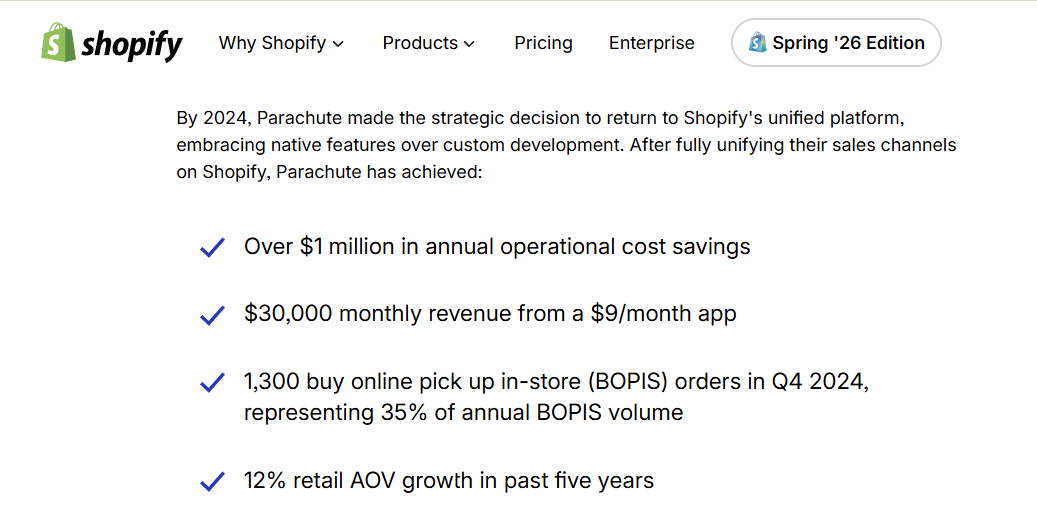
Parachute, the home furnishings brand founded by Ariel Kaye, moved its fulfillment onto Shopify POS specifically to make omnichannel order management less painful. Shoppers can check the brand’s full inventory online, see what’s available at their local store, then complete the purchase online before heading in to collect it. The payoff has been consistent: Parachute now handles roughly 3,500 BOPIS orders a year through that setup.
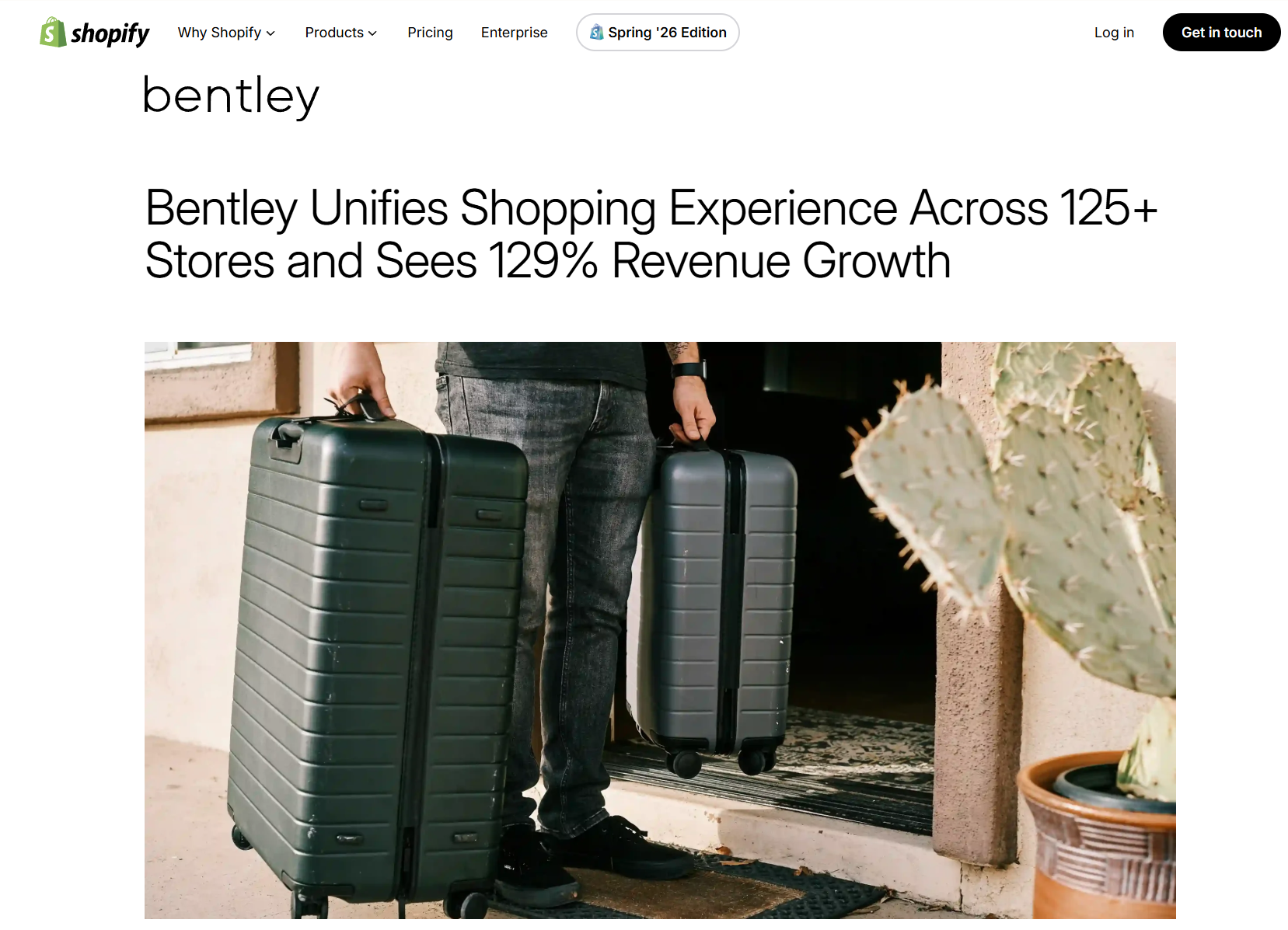
Bentley (the multi-location retailer, not the automaker) rolled Shopify POS out across its stores to solve a similar problem – inventory that wasn’t visible in real time. That gave the brand live inventory visibility across more than 125 locations and unlocked BOPIS and ship-from-store as fulfillment options. Since making that move, the company has seen 129% year-over-year growth in total revenue, along with double-digit growth in both online sales and POS transactions.
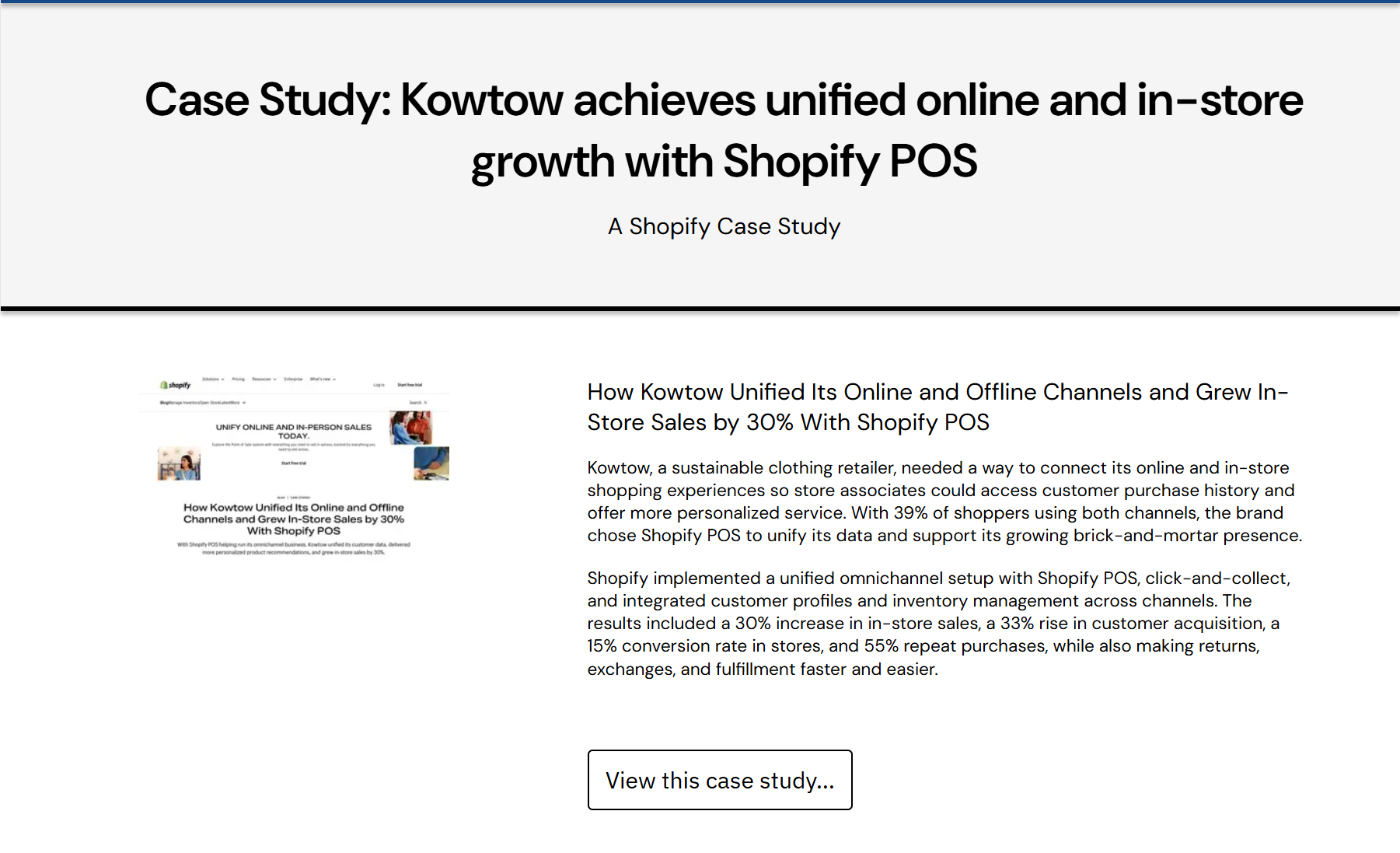
Kowtow, a New Zealand apparel brand, took a slightly different route – it built a strong ecommerce base first, then opened a flagship store in Wellington. It found that a large share of its customers were shopping across both online and physical touchpoints, which pushed the brand toward click-and-collect. Rather than juggling pickup orders manually, staff manages scheduled pickups directly inside the POS system they already use day to day – the founder has said the rollout took about a week, compared to a much longer timeline on a previous POS system.
 The pattern across all three: BOPIS works best when it’s not bolted on as an afterthought, but tied into a single, reliable view of inventory across every location.
Best Practices for Running Shopify Local Pickup
Keep inventory synced in real time
The single biggest source of BOPIS failure is a stock count that’s wrong by the time the customer walks in. If a location handles both shipping and pickup, make sure regular online orders aren’t quietly draining the same shelf a pickup customer is counting on.
Set honest ready-times and hit them
Customers plan their trip around the estimate on the checkout page. If the real prep time is longer, say so upfront; a late pickup does more damage to trust than a longer wait time ever would.
Create a dedicated pickup zone
A clearly marked counter or area near the entrance, separate from the general checkout line, keeps pickup traffic from colliding with regular walk-in shoppers.
Train staff on a fixed workflow
Picking, verifying ID, handling substitutions, and completing the handoff should follow the same sequence every time. A standardized process is what keeps pickup fast even when the store gets busy.
Turn on push notifications for pickup orders
Staff can’t act on an order they don’t know exists. Enabling POS notifications (keeping in mind they currently work on iOS but not Android) means the order gets picked and staged before the customer arrives, not after.
Write pickup instructions that actually answer questions
Where to go, what hours pickup is available, what ID or confirmation to bring, whether someone else can collect on the customer’s behalf – spelling this out up front heads off a lot of “where do I go?” messages.
Test the whole flow before and after launch
Run a real order through checkout, mark it ready, mark it picked up, and check both emails. Pickup badges and availability messaging depend on theme support, so a theme update is a good reason to retest.
Layer in an app once the volume or timing gets complex
Native pickup gives an estimated ready time and nothing more – no date picker, no time slots, no order caps. For businesses where timing is the product – bakeries, florists, caterers – that’s usually the point where a tool like DingDoong earns its keep.
Final Thoughts on Shopify Local Pickup
Pickup isn’t won on the settings page. It’s won at the counter when a buyer walks in, finds their order ready, and leaves happy.
The native Shopify local pickup option handles the basics well. For most shops, it’s the right place to start. Layer in apps like DingDoong when timing gets complex, or PageFly when the storefront needs to sell pickup harder. Either way, the goal stays the same: fewer surprises, faster handoffs, more repeat buyers. Get pickup right, and the local store stops being a backup option. It becomes the reason buyers keep coming back.
Try DingDoong Free
Add a date picker to your Shopify checkout today — no developer needed.
Start free trial →