Shopify Point of Sale (POS) is revolutionizing the way retail businesses work in the present competitive world. As an all-in-one retail management solution, this seamlessly integrates in-store and online operations for an exceptionally uniform shopping experience for customers. So, if you’re just starting out or upgrading your existing setup, this ultimate guide will help you on your way as Shopify POS can transform how you do retail.
What is Shopify POS?
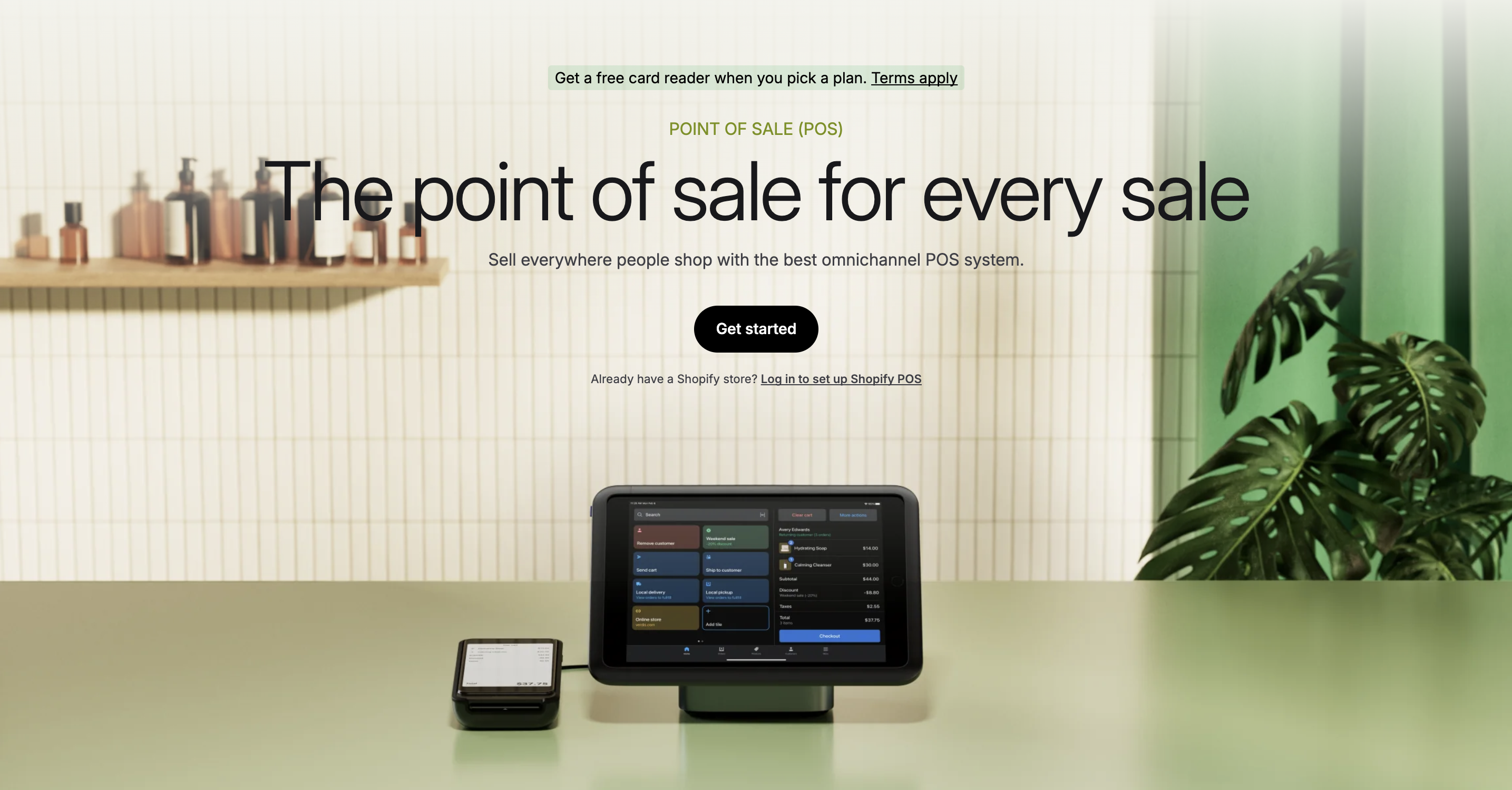
Shopify POS is not just a payment processing system, but an entire retail management platform that consolidates your sales channels. It’s sort of like your business’s control tower—every sale, from in-store purchases to online orders, gets immediately updated across your entire system. This real-time connectivity keeps your inventory counts up to date and customer data consistent across all channels.
Store owners will no longer be switching between multiple systems to check inventory; no more guessing if there’s stock. When a customer buys something from your physical store, your online inventory updates automatically. This seamless integration makes running your business smoother and more efficient.
Benefits for Shopify POS Retail
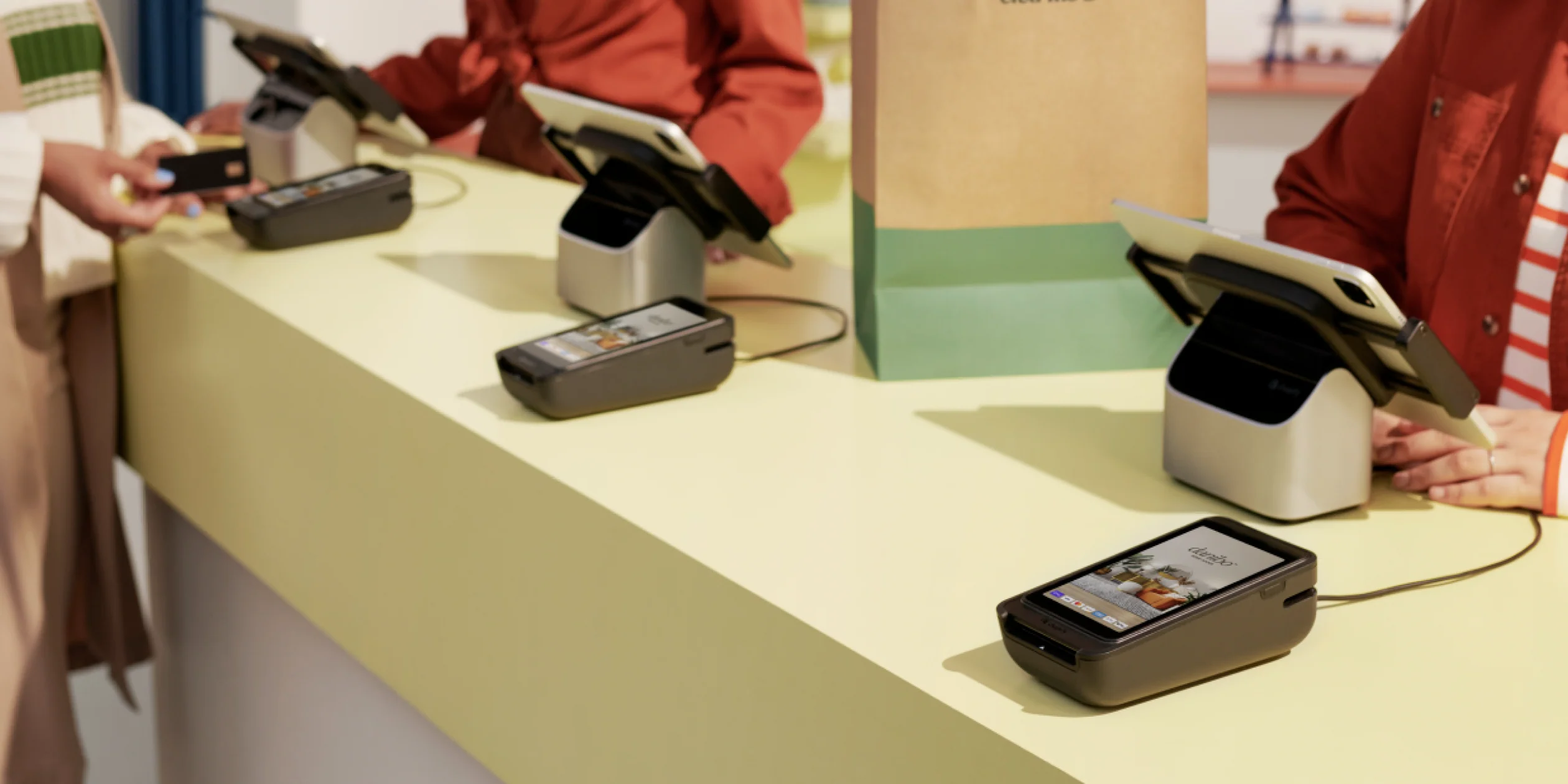
Enhanced Customer Experience
Knowing your customers well is the first step to providing great customer service. Your staff can immediately access valuable customer information, including, with Shopify’s retail point of sale:
- Complete purchase history
- Customer preferences
- Previous interactions
- Special notes or requirements
Knowing this information helps your team give the personalized service that makes customers feel valued and understood. When a repeat customer walks in the door, your team can pick up exactly where they left off, making for an experience that cultivates loyalty.
Streamlined Operations
If you have multiple store locations, Shopify’s integrated POS system makes it much easier to manage them. Rather than managing different systems for different stores, you can manage everything through a single platform. This unified approach means:
- The more time you have to do actual work less admin time
- Reduction in errors in inventory management
- Wider range of company sites can be coordinated
- More accurate reporting
Robust Reporting and Analytics
Making smart business decisions requires good data. The system provides detailed insights into:
- Sales trends perday, week and month
- Product performance metrics
- Staff sales performance
- Inventory movement patterns
These insights allow you to identify growth opportunities and nip problems in the bud before they become
Key Features of Shopify POS
Omnichannel Selling
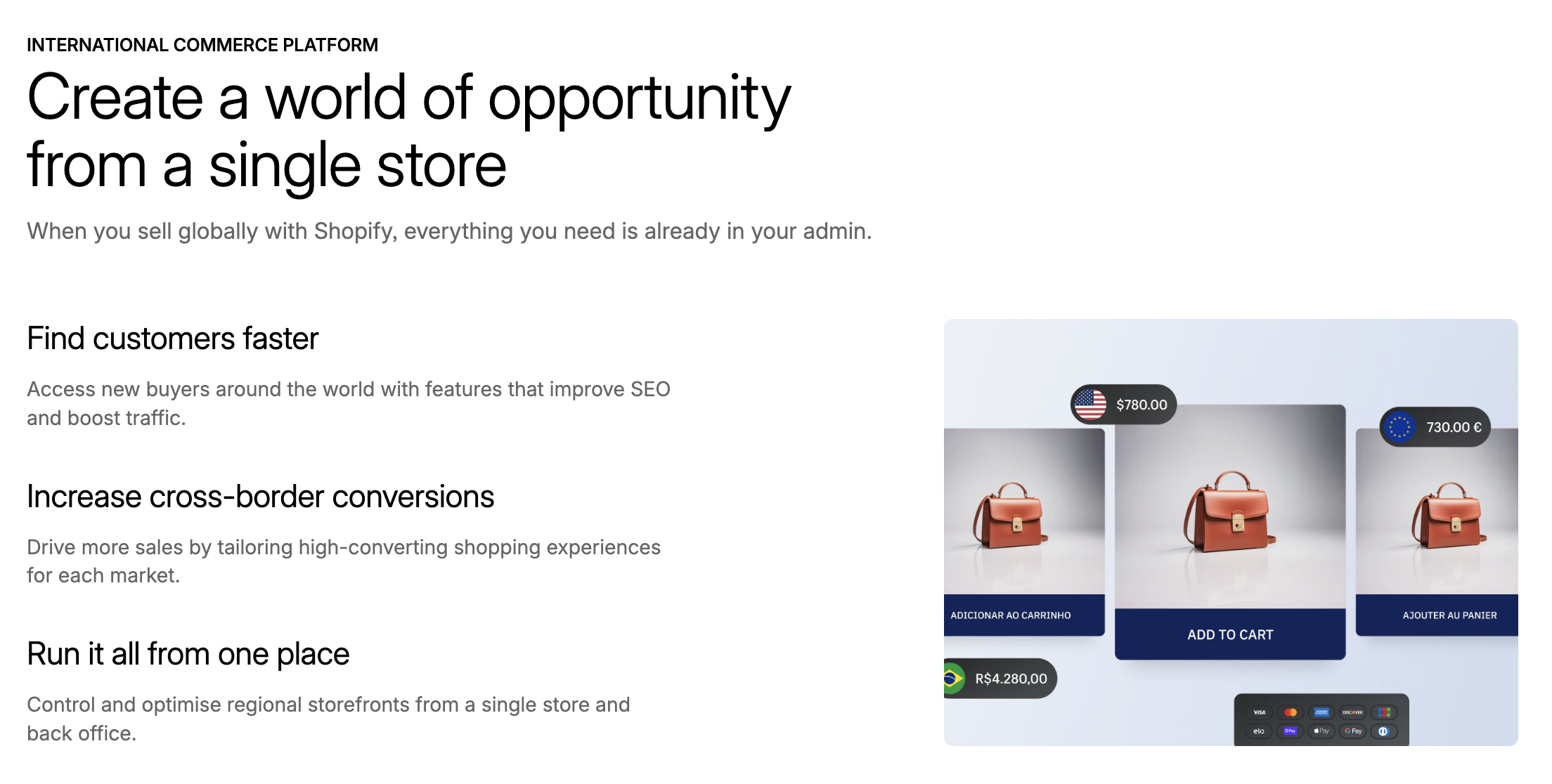 These days, customers expect to shop on their own terms. Maybe they spot something in your store but want to think about it and buy online later. Or perhaps they order online but want to pick up in-store. Shopify POS makes all these scenarios work smoothly, creating a shopping experience that fits modern customer habits.
Inventory Management
No more counting inventory and praying you ordered enough stock. Shopify POS keeps everything in real time, alerting you when items are low and allowing you to catch trends in what’s selling. It’s like a magic 8-ball for your inventory management.
User-Friendly Interface
Complicated systems that require an age to learn are for no one. And this is exactly why Shopify built their POS to be simple. The layout is super clean and intuitive — like using a smartphone app, almost. This means your staff can get up to speed quickly and focus on what really matters: helping customers.
Payment Processing Options
When it comes to payment, customers enjoy choices. Pulling out a credit card, waving their phone to pay with digital currency, or redeeming a gift card — Shopify POS takes care of everything seamlessly. And splitting payments or processing returns is a snap.
How to Set Up Shopify POS
This is a guide on setting up your Shopify POS easily. So here’s the whole setup in seven steps that’ll have you up and running in no time.
Step 1: Choose Your Shopify Plan
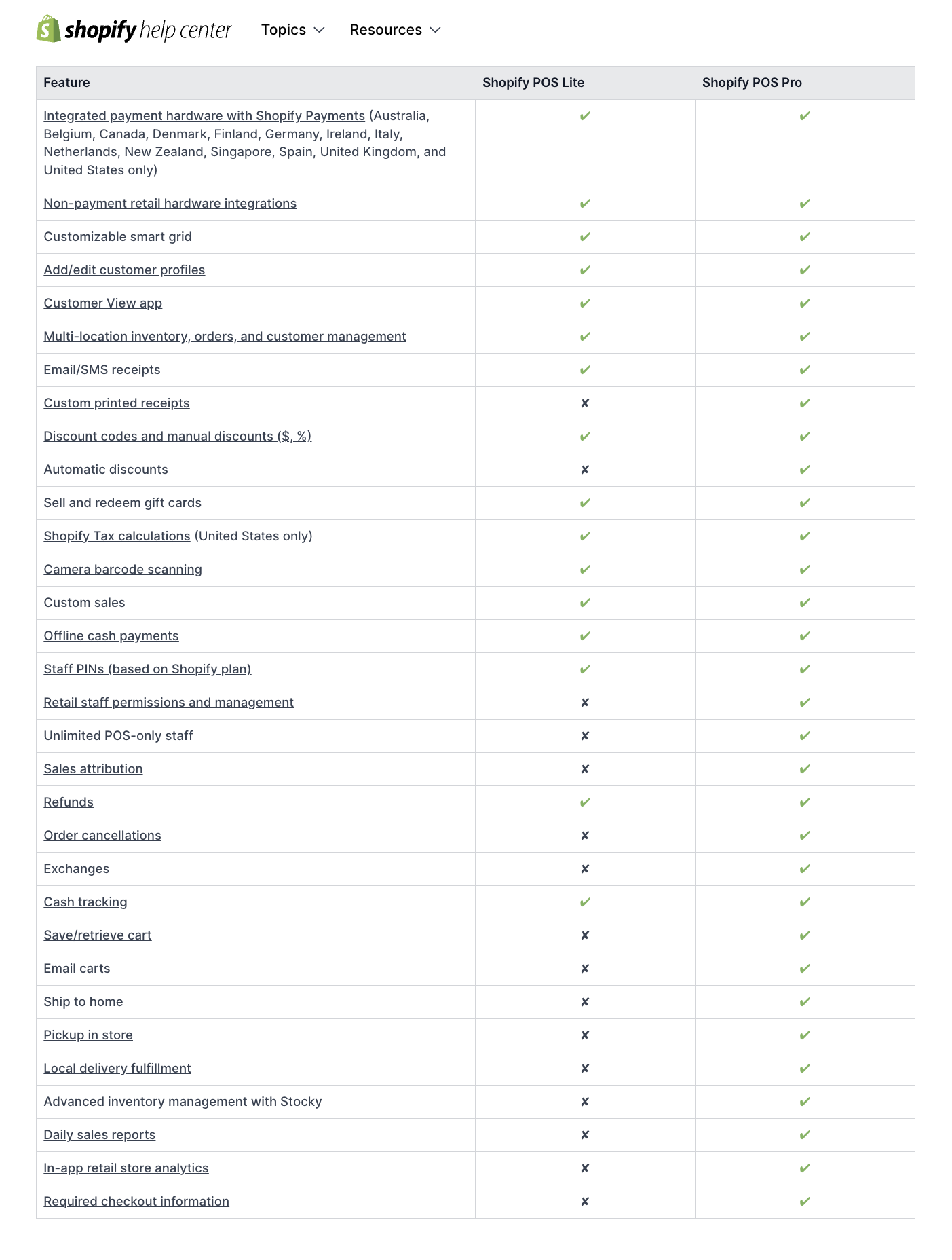 First, you’ve got to choose the right Shopify POS pricing plan for your business. Imagine you were buying a cell phone plan, you would want the one that is tailored to your needs and not pay for the additional packages you are not going to use. To meet your retail needs, Shopify offers 2 POS app subscriptions: POS Lite and POS Pro.
- POS Lite: Included at no extra cost with all Shopify plans, and offers the core features needed for in-person sales, including payment processing, inventory tracking, and customer management.
- POS Pro: Available for an additional $89 USD per month per location, POS Pro offers advanced features designed for businesses selling from a permanent retail location.
Remember, you can always upgrade later as your business grows, so start with what you need right now.
Step 2: Purchase and Connect Your Hardware
The next step is preparing your equipment. Just as you would with a toolkit, however, you will want to select the right pieces for you:
- A tablet (an iPad or an Android tablet) to run the POS app
- A card reader used to Make the payment
- If you require paper receipts, here is a receipt printer
- Cash drawer
- Bar code scanner for rapid checkouts
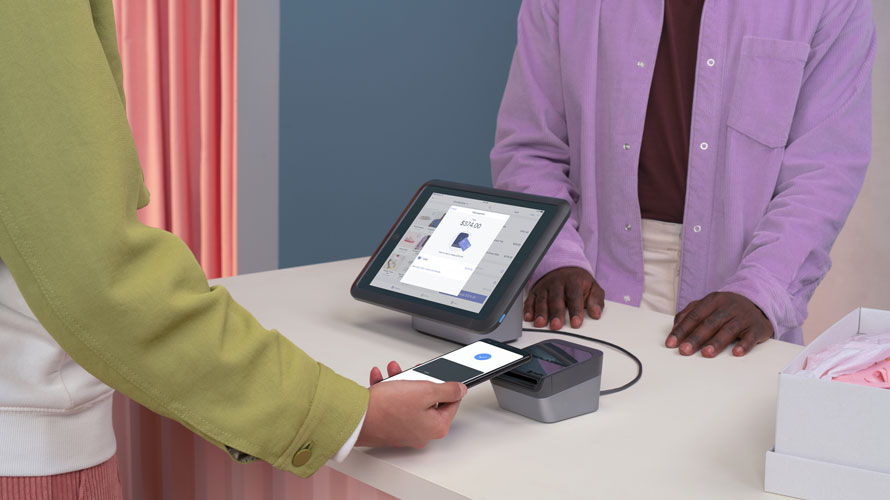
HARDWARE – Purchase directly from Shopify’s hardware store, as it all must work together seamlessly. Next, use the instructions to connect each piece to your system – it’s pretty straightforward, like setting up a new printer at home.
>>> Learn More: Shopify POS Hardware: Complete Setup Guide for Business Owners
Step 3: Install the Shopify POS App
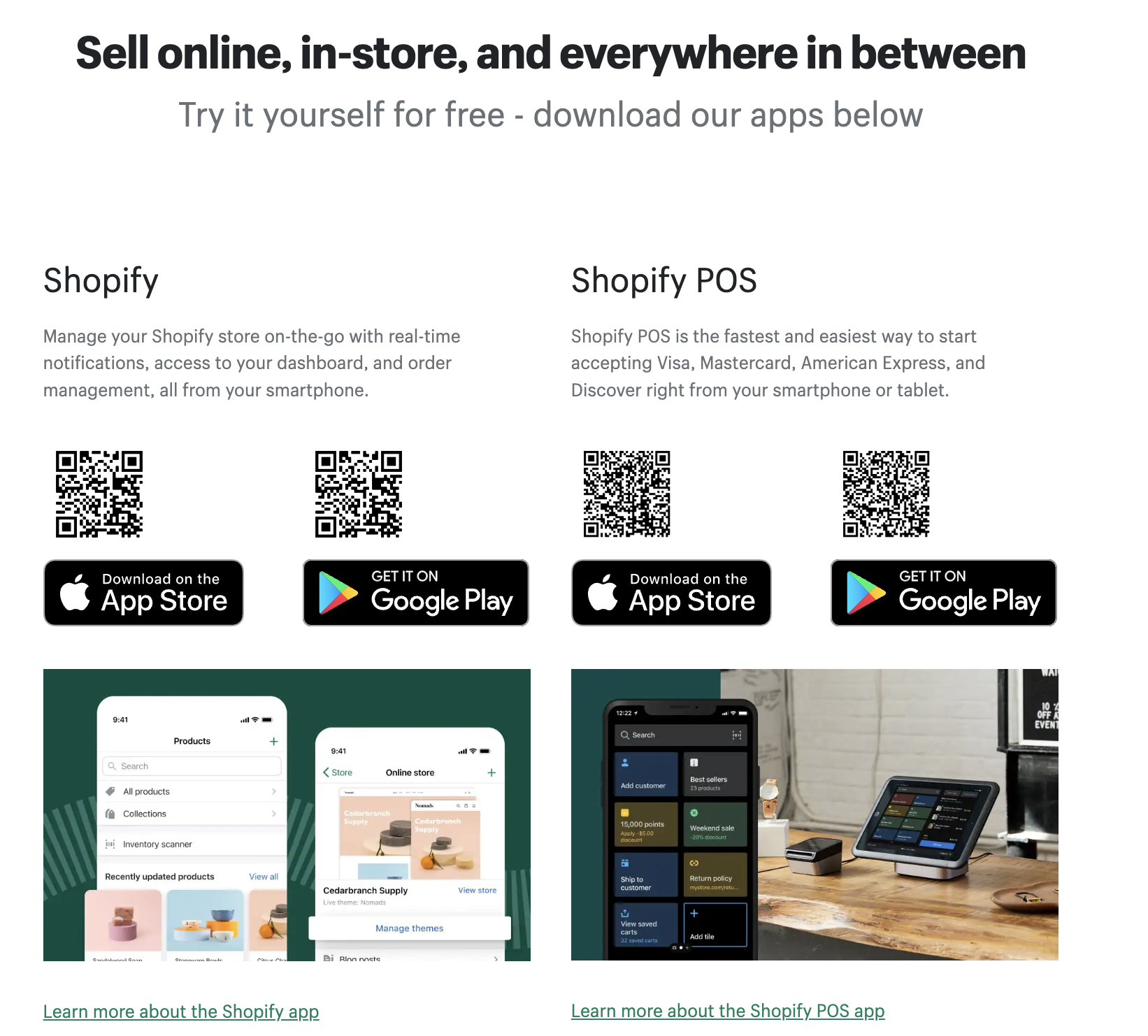 Now that you’ve got your hardware ready, it’s time to set up the software. Don’t worry—getting started is as straightforward as downloading any other app. Here’s how to do it:
- Search for the Shopify POS app in your device’s app store.
- Download and install the app.
- Log in with your Shopify account credentials.
- Follow the setup wizard—it’ll walk you through the basics step by step.
Think of the app as the brains behind your operation. It’s what ties all your hardware together, turning individual pieces into a seamless system that works effortlessly.
Step 4: Configure Your Payment Settings
Before you can make your first sale, it’s essential to set up your payment options—after all, this is how you’ll get paid! Here’s what you need to do:
- Enable Shopify Payments for smooth credit and debit card transactions.
- Add other payment methods like cash or digital wallets to give your customers more flexibility.
- Set up your tax settings to match local regulations—getting this right now saves headaches later.
- Add an option for gift cards if you plan to offer them as a way to boost customer loyalty.
Take your time with this step. Properly configuring your payment settings ensures a smoother checkout experience for both you and your customers.
Step 5: Add Your Products
Now it’s time to fill your virtual shelves with your products. Depending on how many items you sell, you can choose the approach that works best for you:
- For a small product list:
- Add products one by one in the Products section of the app.
- Include key details like names, prices, descriptions, and images to make them stand out.
- For a larger inventory:
- Use a spreadsheet to organize everything.
- Bulk import your products using Shopify’s import tool—it’s fast and efficient.
Think of this step as setting up your store’s shelves. When everything is organized and labeled correctly, it’s easier for customers to find what they need and for you to manage inventory.
Step 6: Set Up Your Team
Getting your staff ready to use the system is just as important as setting up the hardware. Here’s how to ensure everyone is set up for success:
- Create individual accounts for each team member so you can track sales and activities.
- Assign unique PINs to keep access secure and personal.
- Set specific permissions so everyone has access to just the tools they need to do their job.
- Give managers elevated permissions so they can oversee operations seamlessly.
Think of this like giving out keys to your store. Each staff member gets access to what they need, ensuring everything runs smoothly without compromising security.
Step 7: Customize Your Interface
Finally, make the Shopify POS system work perfectly for your business by tailoring it to your needs:
- Arrange the home screen with frequently used items so your team can navigate quickly.
- Add quick buttons for popular actions to streamline transactions.
- Personalize your receipts with your store’s name, logo, and branding for a professional touch.
- Include any special shortcuts or features that can make daily operations easier for your team.
This step is like organizing your workspace—everything should be exactly where you need it, making the system intuitive and efficient for everyone.
Before the big day, take a moment to test the system. Run a few test sales to make sure everything works as it should. Let your staff practice too—it’s a great way to build confidence and ensure they’re comfortable with the system.
Once everything is up and running, you’re ready to create a great experience for your customers and start making sales!
Real Success Stories: Shopify POS in Action
Let’s take a closer look at how real brands are using Shopify POS to transform their retail operations. These examples highlight how powerful and flexible the system can be in solving everyday challenges.
Allbirds: Unified Inventory Management
 Managing inventory across more than 20 global stores was a challenge for Allbirds, but Shopify POS made it simple. Thanks to its unified inventory feature, Allbirds can:
- Check real-time stock levels across all locations from any POS device.
- Process “buy in-store, ship to customer” orders when an item is out of stock locally.
- Access detailed inventory data instantly to make better decisions on the spot.
Now, Allbirds never loses a sale due to stock issues at a single store. The system automatically updates inventory across all channels, so their online and in-store numbers are always accurate.
Bathu: Multi-Store Management
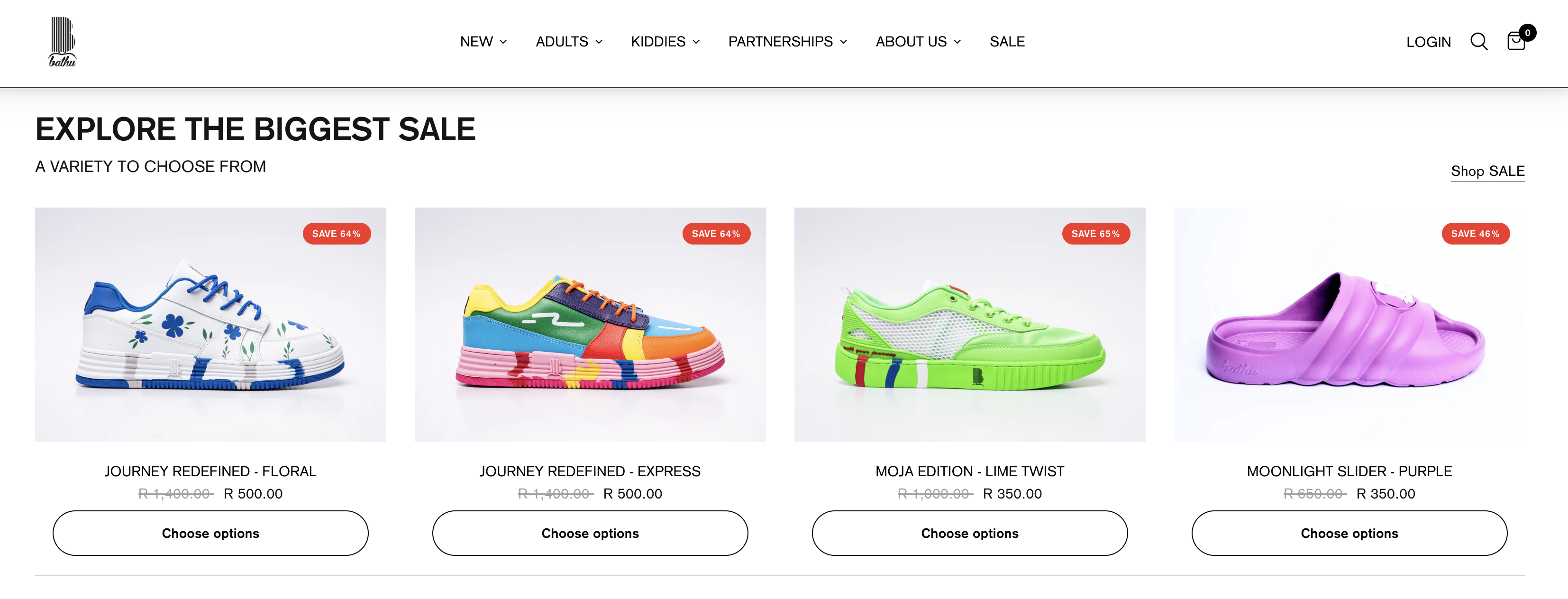 Bathu’s rapid growth meant they needed a system that could handle multiple locations effortlessly. Shopify POS rose to the challenge, helping them:
- Manage inventory across 30+ locations from one easy-to-use dashboard.
- Track real-time sales performance for every store, allowing them to identify trends and top performers.
- Transfer stock between locations quickly and easily when demand shifts.
This centralized control helped Bathu increase revenue by 200%, while also making it simple to open new stores. With Shopify POS, setting up and managing new locations is fast and efficient.
Kit + Ace: Mobile Checkout Features
 For Kit + Ace, creating a seamless, premium in-store experience was key. Shopify POS’s mobile checkout features helped them deliver exactly that:
- Payments can be processed anywhere in the store using mobile POS devices, cutting down wait times.
- Staff can instantly pull up customer profiles and purchase history, making interactions more personal.
- Real-time data allows the team to offer tailored recommendations that align with each shopper’s preferences.
This mobile setup lets Kit + Ace provide the kind of personalized service that keeps customers coming back, all while maintaining their reputation for exceptional in-store experiences.
Tigerlily: Customer Profile Integration
 Tigerlily has taken customer service to the next level with Shopify POS’s customer management features. The system gives their team instant access to:
- Customer purchase history across both online and in-store channels.
- Personalized recommendations based on what customers have bought before.
- Insights into shopping preferences and patterns, helping staff tailor their approach.
With Shopify POS, Tigerlily’s staff can genuinely connect with their customers. By offering thoughtful, personalized recommendations, they’ve seen a 20% increase in average order values—showing that a little extra care goes a long way.
Wildling: Omnichannel Integration
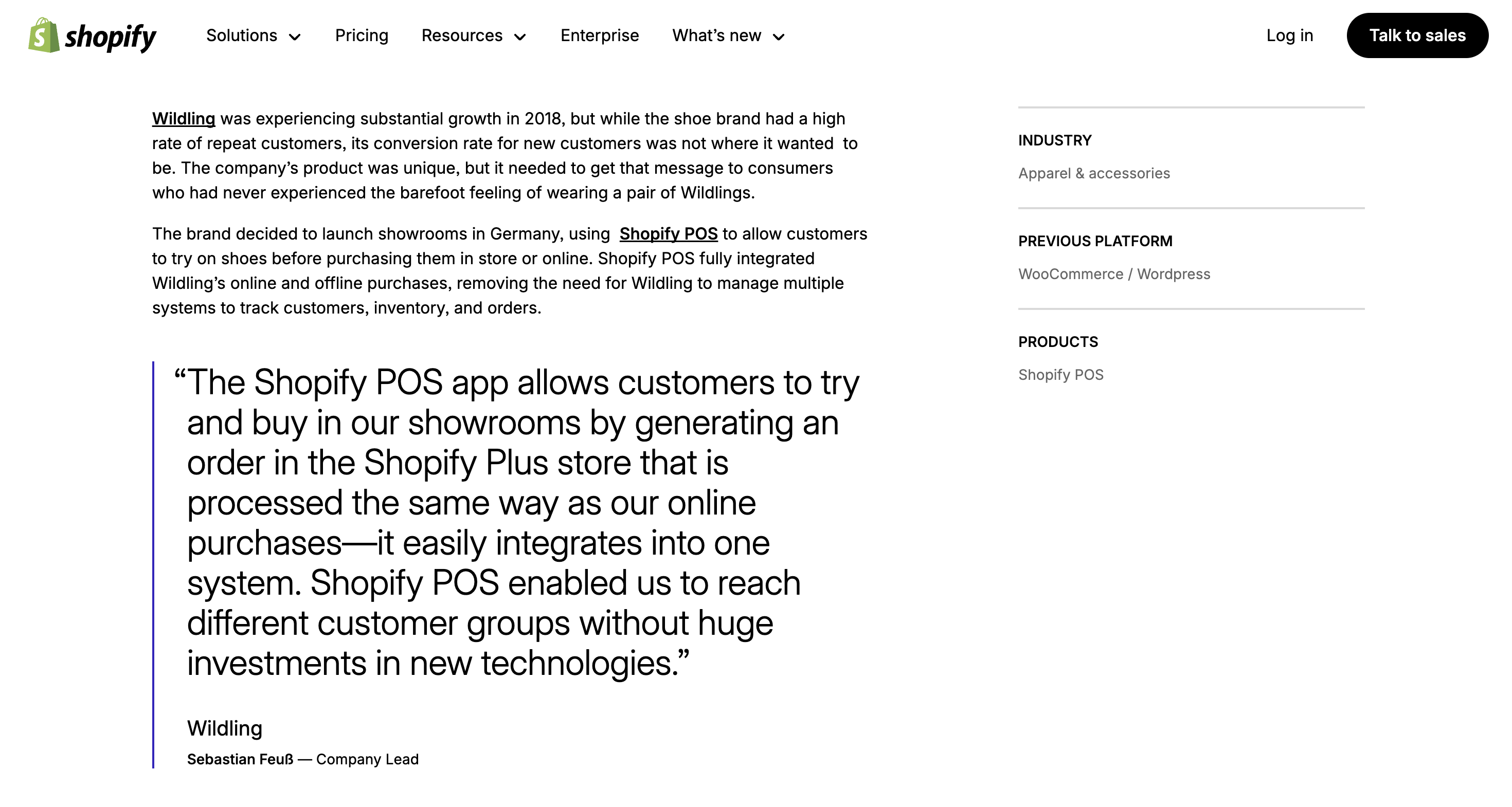 Wildling has bridged the gap between their showrooms and online stores using Shopify POS’s omnichannel features. The system enables them to:
- Process online orders directly from their showrooms, so customers get what they want, even if it’s not in stock locally.
- Share customer data seamlessly between online and in-store experiences, creating a unified shopping journey.
- Maintain consistent inventory updates across all sales channels to avoid confusion or stock issues.
These capabilities let Wildling offer a unique try-before-you-buy experience, giving customers the confidence to make purchases. This seamless connection between their physical and online spaces has become a key driver for increased sales and customer satisfaction.
Shopify POS FAQs
Can Shopify be used as POS?
Yes, absolutely! Shopify offers a Point of Sale (POS) system called Shopify POS that’s perfect for selling in person—whether it’s in a retail store, at a pop-up event, or even on the go.
Is Shopify a good POS system?
Shopify POS is known for being reliable, easy to use, and packed with features. It’s especially great if you already run an online store, as it integrates seamlessly with Shopify’s e-commerce platform. This means you get:
- Unified inventory management to keep stock levels in sync across online and in-person sales.
- Access to customer data and insights to offer personalized service.
- Detailed sales analytics to understand what’s working in your business.
Is Shopify POS different from Shopify?
Think of Shopify POS as an extension of Shopify. While Shopify is designed for managing your online store, Shopify POS is built specifically for in-person sales. The two systems work together seamlessly, so you can:
- Sync inventory across online and physical stores.
- Share customer information between both platforms for a consistent experience.
- Access all your sales data in one place.
Does Shopify POS take a percentage?
Yes, Shopify charges transaction fees for sales made through its POS system. The fees depend on your subscription plan and the payment method you use.
- Shopify Payments (Shopify’s built-in payment gateway):
- Fees range from 2.4% + 10¢ to 2.9% + 30¢ per transaction, depending on your plan.
- External payment gateways: Additional fees may apply if you don’t use Shopify Payments.
Conclusion
Think of Shopify POS as the bridge that connects all parts of your retail business. It’s more than just a way to process payments – it’s a complete system that helps you serve customers better, work more efficiently, and grow your business smarter. By bringing together your in-store and online operations, Shopify POS helps you create the kind of shopping experience that keeps customers coming back for more.
Try DingDoong Free
Add a date picker to your Shopify checkout today — no developer needed.
Start free trial →
![12 Rental Dress Business Ideas [2026 Trends Updated]](https://dingdoong.io/wp-content/uploads/2026/09/rental-dress-business-ideas.png)