Customer reviews are crucial in shaping a business’s online reputation. But how can you make it as easy as possible for your customers to share their experiences? Enter the Google Review QR Code. This code will simplify the review process, allowing customers to leave feedback with just a quick scan of their smartphones. By bypassing the need for manual searching and navigation, Google Review QR codes streamline the entire process, making it incredibly convenient for customers to share their thoughts. In this article, we’ll explore various examples of how businesses are leveraging Google Review QR codes to boost their online presence and enhance customer engagement.
What is Google Review QR Code?
A Google review QR code is a tool that simplifies the process of leaving a review for a business on Google. When scanned by a smartphone, the QR code directs users straight to the business’s Google review page, bypassing the need for manual searching and navigation. This innovation makes it incredibly easy for customers to share their feedback.
Benefits of Google Review QR Code for Business
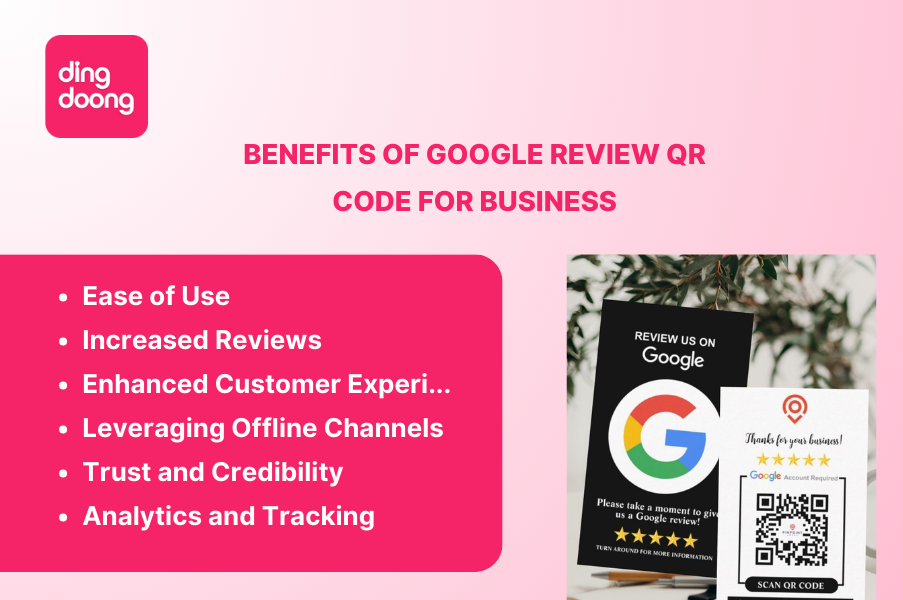
Ease of Use
First and foremost, the convenience of QR code for Google Review cannot be overstated. Customers can effortlessly scan the QR code with their smartphones and be taken directly to the review page. This streamlined process significantly reduces the steps required to leave a review, making it more likely that customers will take the time to share their experiences
Increased Reviews
By making it easy and quick for customers to leave feedback, businesses often see a higher volume of reviews. This boost in reviews can enhance a business’s online reputation, as more positive reviews lead to greater credibility and trust among potential customers.
Enhanced Customer Experience
The ease of use also translates into a better customer experience. When customers find it simple to leave feedback, their overall satisfaction with the business increases. Happy customers are more likely to engage with the business again and recommend it to others
Leveraging Offline Channels
Google review QR codes also bridge the gap between offline and online interactions. Businesses can place these QR codes on various physical materials such as product packaging, receipts, posters, and business cards. This integration allows businesses to leverage their offline presence to drive online engagement and reviews
Trust and Credibility
Another significant benefit is the credibility that comes with Google reviews. Many consumers trust Google reviews when making purchasing decisions. A higher number of positive reviews can significantly enhance a business’s trustworthiness and appeal to new customers.
Analytics and Tracking
Moreover, using dynamic QR codes provides valuable analytics and tracking capabilities. Businesses can monitor how often their QR codes are scanned, gather data on customer interactions, and optimize their review collection strategies based on these insights. This data-driven approach can lead to more effective marketing and customer engagement efforts.
How to Create Google Review QR Code Free?
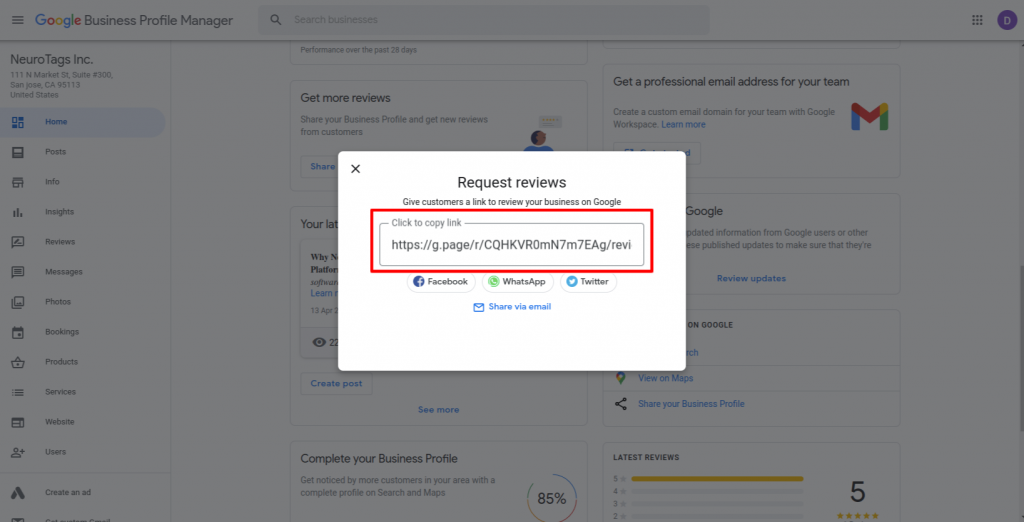
Creating a Google Review QR code is a straightforward process you can complete using free online tools like DingDoong – Free QR Code Generator. Here’s a step-by-step guide to help you generate one for your business:
Locate Your Google Reviews Link
First, find your Google Reviews link by following these steps:
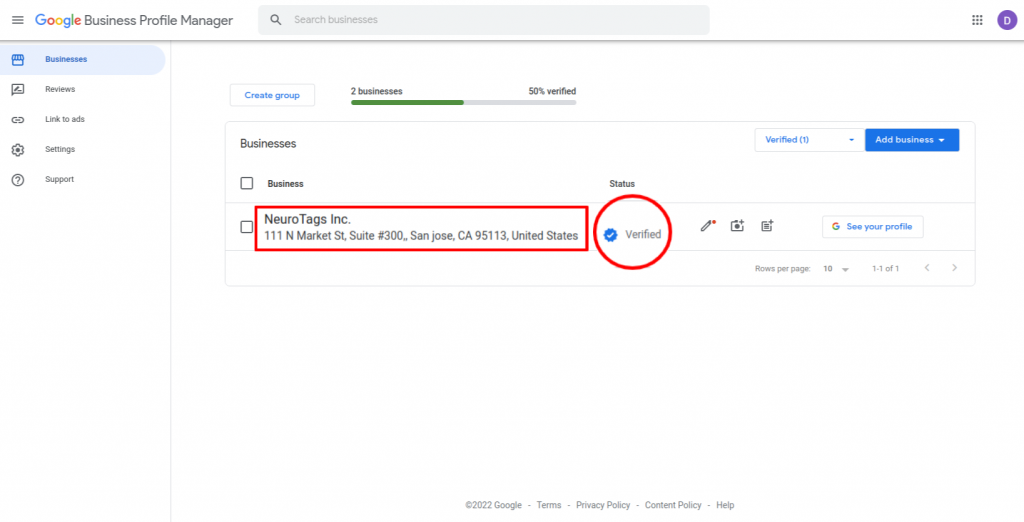
- Go to Google Business Profile
- Sign in to your Gmail account and go to Business Profile.
- Click on the ‘Business’ for which you want to receive reviews.
- Note: Make sure the status of the business you select is verified.
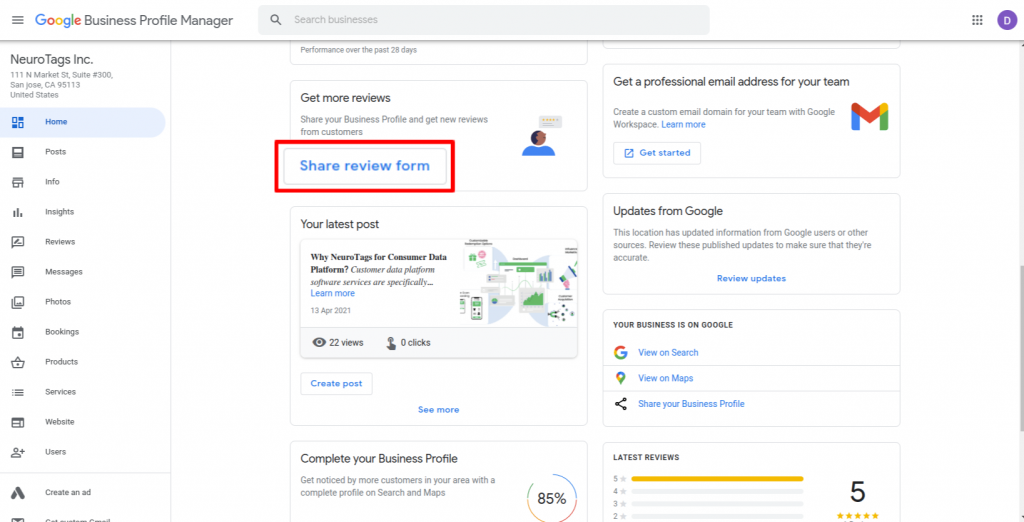
- Click on the Share Review Form. Scroll down to the ‘Get More Reviews’ section and click on ‘Share Review Form.’
- Click on the link to copy the review link.
Then go to the free code generator website, and paste your Google Reviews URL into the QR code generator’s input field.
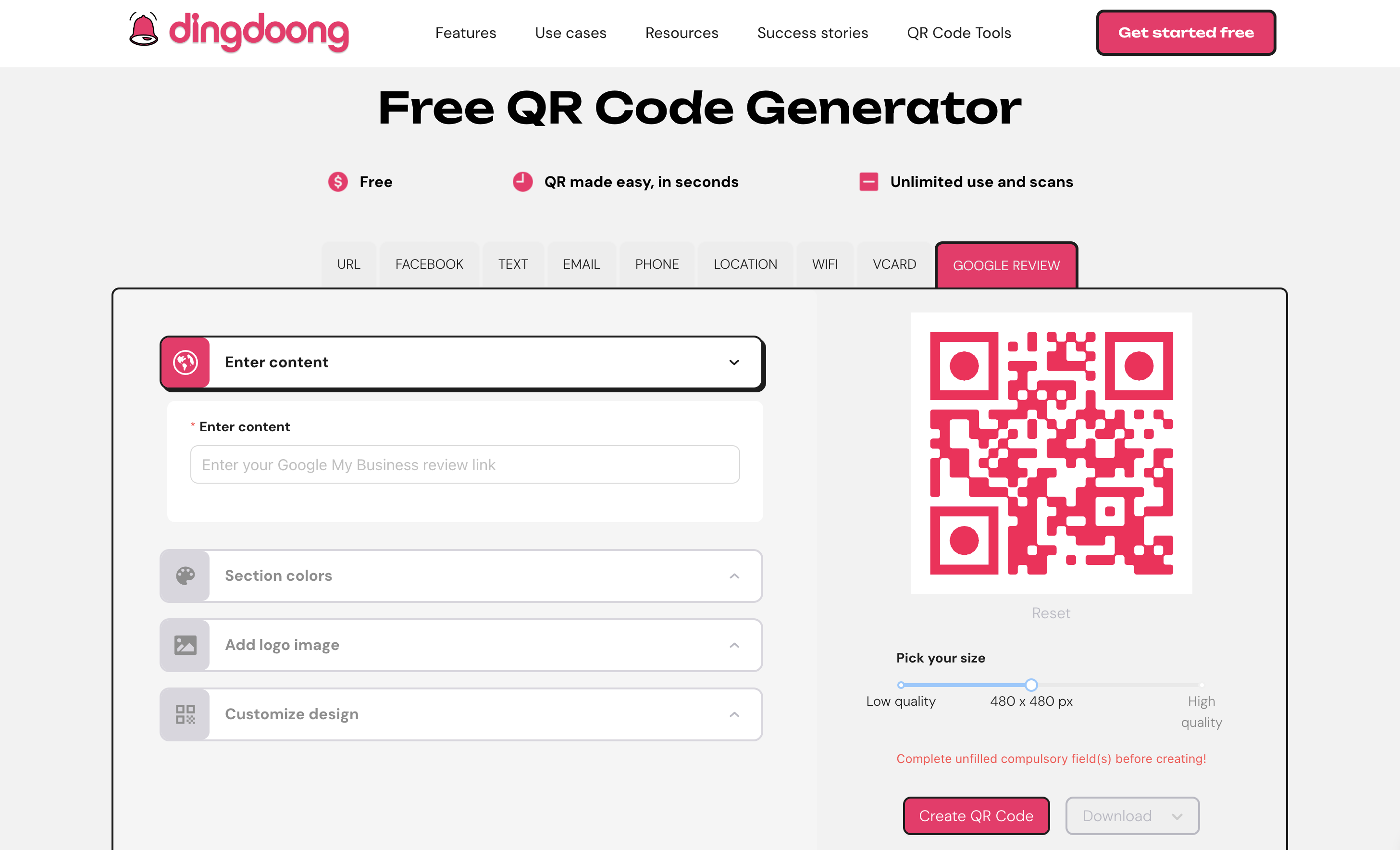
- Note: Make sure you are logged out of your Google account when copying the link to ensure it works for all users
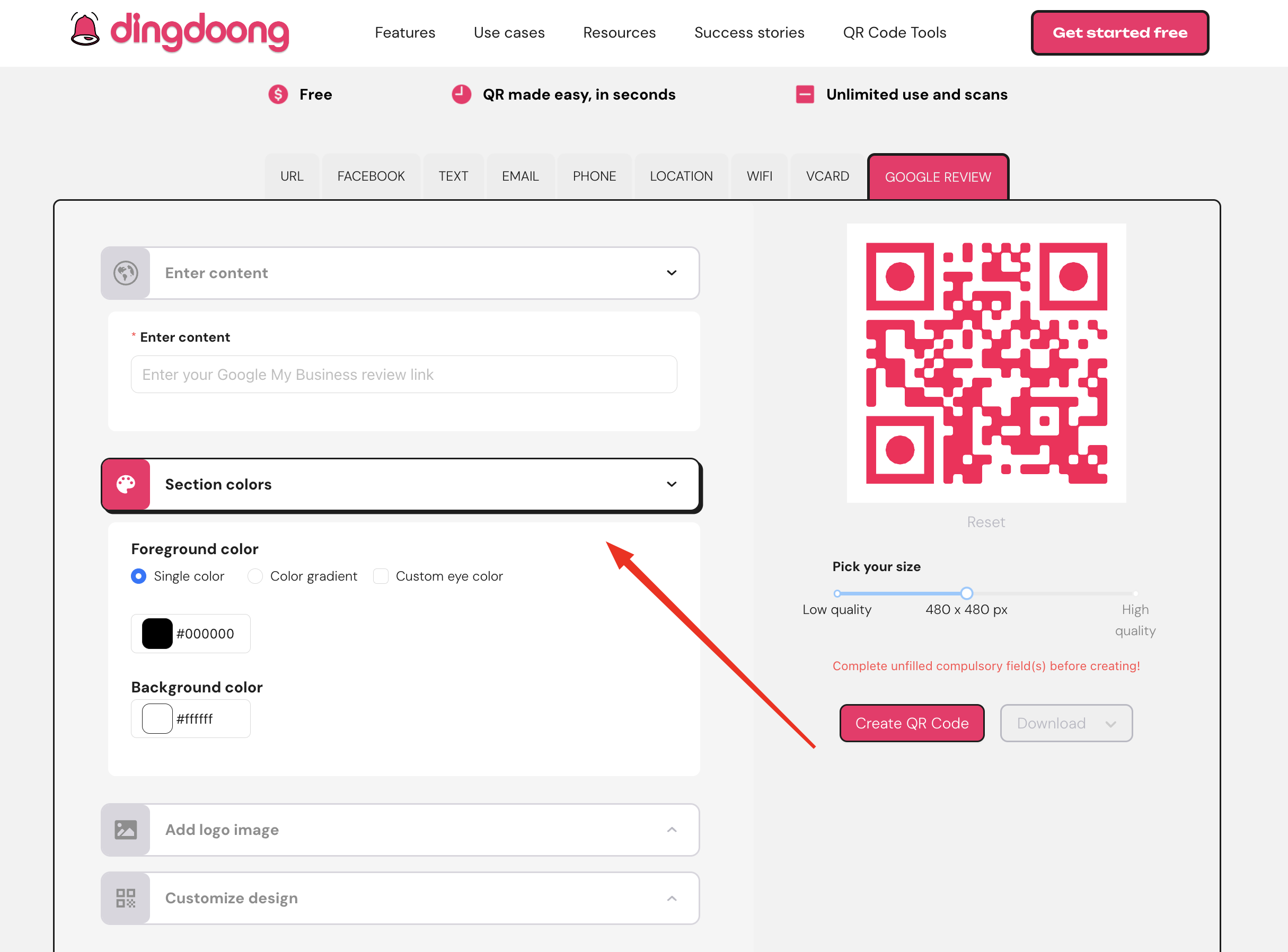
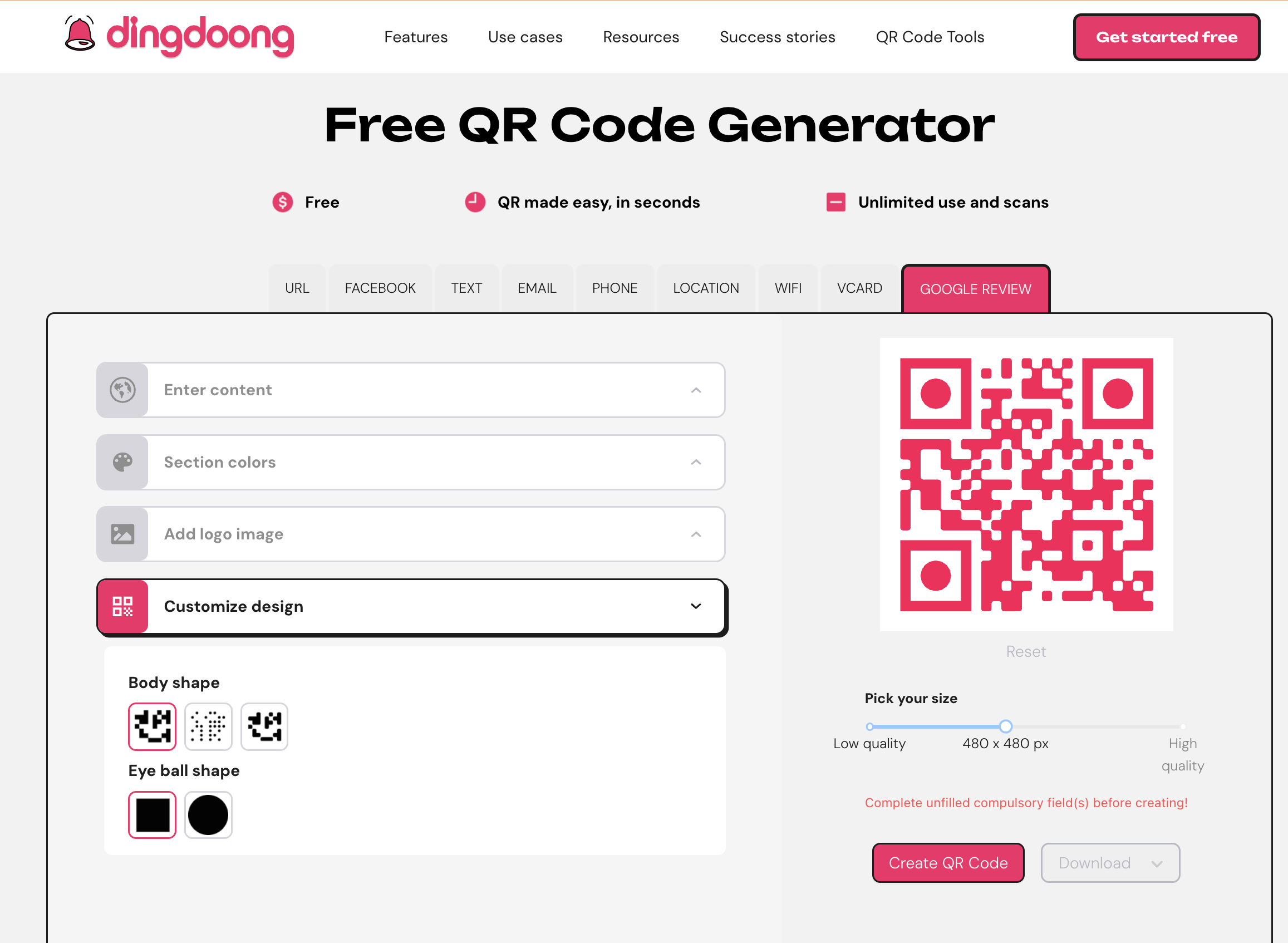
Customize Your QR Code
Many tools offer customization options. You can adjust the color, add a logo, and change the shape to match your brand’s design. Ensure that the QR code remains easily scannable after customization.
Download Your Google Review QR Code
Save your QR code in a high-resolution format such as PNG or SVG. This ensures that the code is clear and scannable even when printed in larger sizes.
Deploy Your Google Review QR Code
Place the QR code where it is easily accessible to your customers. This could be on product packaging, receipts, menus, flyers, or even on social media and your website. The goal is to make it as easy as possible for customers to leave reviews
Google Review QR Code Examples
Example 1: Restaurant Menu QR Code
One effective way to use Google Review QR codes is by incorporating them into restaurant menus. When customers dine at your restaurant, they can easily scan the QR code on the menu to leave a review while their experience is still fresh.
How to Implement
- Add to Menus: Print the QR code on your physical menus, ensuring it is placed prominently so customers can easily find it.
- Include Instructions: Add a small note next to the QR code, such as “Enjoyed your meal? Scan here to leave a Google Review!”
Example 2: Retail Store Receipt QR Code
Another practical application is placing Google Review QR codes on retail store receipts. After a customer makes a purchase, they receive a receipt with a QR code inviting them to leave a review.
How to Implement
- Print on Receipts: Include the QR code on all printed receipts, ideally near the bottom with a short call to action like “We value your feedback! Scan to leave a Google Review.”
- Staff Training: Train your staff to inform customers about the QR code on their receipt and encourage them to use it.
Example 3: Business Card QR Code
Business cards are another excellent medium for Google Review QR codes. Including a QR code on your business card can prompt clients or customers to leave a review after interacting with your business.
How to Implement
- Design the Business Card: Incorporate the QR code into the design of your business card, ensuring it is clearly visible.
- Distribute Cards: Hand out these business cards during meetings, events, and customer interactions.
Example 4: Digital Marketing QR Code
Incorporating Google Review QR codes into your digital marketing efforts can also be highly effective. For instance, you can add QR codes to email signatures, social media posts, and newsletters.
How to Implement
- Add to Email Signatures: Include the QR code in your email signature with a call to action like “Leave us a review on Google!”
- Share on Social Media: Post the QR code on your business’s social media pages, encouraging followers to scan and leave reviews.
- Include in Newsletters: Add the QR code to your newsletters with a brief message asking customers to share their feedback.
Example 5: In-Store Signage QR Code
In-store signage is another great way to use Google Review QR codes. Place signs around your store encouraging customers to scan the code and leave a review.
How to Implement
- Print Signage: Design and print signs that include the QR code along with a call to action, such as “Share your experience! Scan to leave a Google Review.”
- Place Strategically: Position the signs in high-traffic areas within your store, such as near the entrance, checkout counters, and fitting rooms.
5 Best Practices to Create a QR Code for Google Review
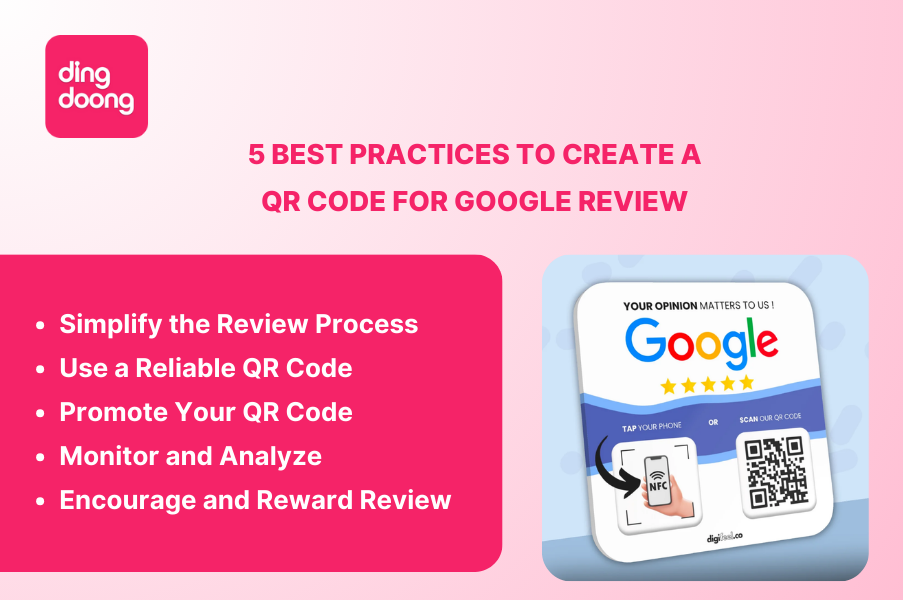
Creating a QR code for Google Reviews can significantly boost your business’s online reputation and customer engagement. QR codes offer a seamless way for customers to leave reviews, enhancing your visibility and credibility on Google. Here are five best practices to ensure you create an effective QR code for Google Reviews.
Simplify the Review Process
Simplifying the review process for your customers is crucial. A streamlined experience encourages more reviews, which can lead to higher ratings and better visibility in search results. By making the process as easy as possible, you can increase the likelihood of receiving positive reviews.
Easy Access
Ensure that your QR code leads directly to your Google Review page. Avoid any intermediary steps that could confuse or frustrate customers. The simpler the process, the more likely they are to leave a review.
Clear Instructions
Provide clear instructions on how to use the QR code. Include a brief explanation nearby, such as “Scan this code to leave a Google Review.” This can be printed on receipts, menus, or displayed on your website and social media channels.
Test the QR Code
Before distributing the QR code, test it across various devices and QR code readers. Ensure it directs users precisely where you want them to go without any hitches. Once you’ve simplified the review process, the next step is to ensure that the QR code itself is reliable and professional.
Use a Reliable QR Code Generator
Choosing a reliable QR code generator is essential to create a functional and professional-looking QR code. Not all QR code generators are created equal, and some may offer additional features that can be beneficial. You should look for QR code generators that offer:
- Customization options: Customization can make your QR code stand out and align with your brand’s identity. Choose a generator that allows you to customize the color, shape, and logo. This not only enhances aesthetic appeal but also increases recognition and trust.
- Dynamic vs. Static QR codes: Decide whether you need a dynamic or static QR code. A dynamic QR code can be edited even after it’s printed, and it allows you to track data and usage. Static QR codes, on the other hand, are fixed and cannot be changed once created.
Some popular tools include DingDoong Google Review QR Code, QR Code Chimp, QRStuff,… Now that you have a reliable and well-designed QR code, it’s important to promote it effectively to maximize its impact.
Promote Your QR Code Effectively
To maximize the impact of your Google Review QR code, you need to promote it effectively. Placement and visibility are key factors in encouraging customers to use it. By strategically placing and promoting your QR code, you can increase the chances of receiving more reviews.
Strategic Placement
Place your QR code in high-traffic areas where customers are most likely to see it. Consider locations like the checkout counter, on product packaging, on your website, and within email signatures.
Print Materials
Incorporate the QR code into your printed materials such as business cards, flyers, and posters. Ensure the code is large enough to be easily scanned and accompanied by a call to action.
Digital Promotion
Leverage your digital platforms to promote your QR code. Share it on social media, include it in your email newsletters, and add it to your Google My Business profile. The more exposure it gets, the higher the chances of receiving reviews.
Monitor and Analyze Feedback
After effectively promoting your QR code, it’s crucial to monitor and analyze the feedback you receive to continuously improve your services. From there, you can make informed decisions to enhance your business.
Use Google My Business
Regularly check your Google My Business dashboard to see new reviews and track overall performance. Respond to reviews promptly to show that you value customer feedback and are committed to improving your services.
Analyze Trends
Look for common themes or trends in the reviews. Positive feedback can highlight your strengths, while negative comments can indicate areas that need attention. Use this information to make informed business decisions.
QR Code Analytics
If you use a dynamic QR code, take advantage of the analytics features. Track how often the code is scanned, where the scans are coming from, and any patterns in customer behavior. This data can help refine your marketing strategies.
Encourage and Reward Reviews
Finally, encouraging and rewarding customers for their reviews can further boost the number of reviews you receive.
Incentivize Reviews
Offer incentives such as discounts, coupons, or entry into a prize draw for customers who leave a review. Ensure the process remains genuine and compliant with Google’s review policies.
Friendly Reminders
Politely remind customers to leave a review at the end of their visit or purchase. Train your staff to mention it during interactions and include reminders in follow-up emails.
Showcase Positive Reviews
Share positive reviews on your social media platforms and website. Highlighting customer satisfaction not only builds trust with potential customers but also encourages more people to leave reviews.
FAQs
Can you get a QR code for a Google review?
Yes, you can create a QR code that directs users to your Google review page. This QR code simplifies the process for customers to leave reviews, making it more likely they will provide feedback.
How do I get Google QR code?
- Create Your Review Link:
- Log into your Google Business Profile and navigate to the “Home” tab.
- Locate the “Get more reviews” card and select “Share review form” to get your unique review link.
- Generate the QR Code:
- Use an online QR code generator such as DingDoong QR code scanner.
- Paste the Google review link into the generator, customize your QR code (e.g., add a logo, change colors), and generate the code.
- Download the QR code in a suitable format like PNG or PDF for printing and sharing.
- Test Your QR Code:
- Before distributing the QR code, test it by scanning it with a smartphone to ensure it directs to the correct Google review page.
How do I get a Google review link?
To obtain your Google review link:
- Log into Google Business Profile:
- Go to your Google Business Profile dashboard.
- Click on the “Home” tab and find the “Get more reviews” card.
- Share Review Form:
- Click on “Share review form” to copy your unique Google review URL.
Wrap Up
Using Google Review QR codes in your business strategy can greatly improve your online presence and customer engagement. Making it easy for customers to leave reviews helps build a strong online reputation, attract more potential customers, and boost business growth. Hoping the examples and best practices in this article are effective for you to use Google Review QR codes and elevate your business!
Try DingDoong Free
Add a date picker to your Shopify checkout today — no developer needed.
Start free trial →
![12 Rental Dress Business Ideas [2026 Trends Updated]](https://dingdoong.io/wp-content/uploads/2026/09/rental-dress-business-ideas.png)