Setting up a physical store? You’ll need more than just great products and customer service. The right Shopify POS hardware can make the difference between smooth checkouts and frustrated customers waiting while your system struggles to process payments. Shopify POS hardware includes all the physical devices that help you sell in person – tablets, card readers, receipt printers, cash drawers, and barcode scanners. These tools work together to create a checkout experience that’s fast, professional, and reliable.
Here’s what most business owners don’t realize: the hardware you choose affects everything from checkout speed to customer satisfaction. Get it right, and transactions flow smoothly. Get it wrong, and you’ll spend more time troubleshooting than selling.
What Shopify POS Hardware Actually Includes
Shopify POS devices refer to all the physical equipment needed to run in-person sales through Shopify’s point-of-sale system. Think of it as the bridge between your digital store and real-world customers. Here’s what makes up a typical setup:
- Main Device for POS App: This is your primary screen – usually an iPad or Android tablet running the Shopify POS app. It acts like a modern cash register, displaying products, processing orders, and managing sales.
- Card Reader: A small device that accepts credit and debit card payments. Shopify’s readers handle chip cards, tap payments, and mobile wallets like Apple Pay and Google Pay. They connect wirelessly via Bluetooth.
- Receipt Printer: Prints paper receipts for customers who want them. While you can email receipts, many customers still prefer paper copies, especially for returns or expense tracking.
- Cash Drawer: A secure drawer for storing cash and coins. It connects to your receipt printer and opens automatically when you complete a cash sale.
- Barcode Scanner: Speeds up checkout by scanning product barcodes instead of manually searching for items. Essential if you have more than a handful of products.
- Stands and Mounts: Keeps your tablet stable and positioned correctly for both staff and customers. Some stands can flip the screen toward customers for signatures or tips.
You don’t need every piece right away. A small business might start with just a tablet and card reader, while a busy retail store needs the complete setup.
Types of Shopify POS Devices Available
Shopify offers several hardware options designed for different business needs:
Tablets and Phones
iPad (Recommended)
Most merchants prefer iPads because they’re reliable and the Shopify POS app runs smoothly on iOS. You’ll need iPadOS 15 or higher on an iPad 5th generation or newer.
Android Tablets
Also supported and often less expensive than iPads. The Android version works well too. Make sure your tablet meets Shopify’s requirements.
Smartphones
iPhones and Android phones work, though the smaller screen makes them better for quick sales rather than full-time counter use.
Shopify Card Readers
Tap & Chip Card Reader ($49)
Shopify’s main card reader accepts chip cards and contactless payments. It’s small, lightweight, and connects via Bluetooth. Perfect for most businesses.
Tap & Chip with Dock ($89)
Same reader but includes a charging dock that doubles as a stand. Good for countertop setups where the reader stays in one place.
All-in-One Devices

Shopify POS Go ($299)
A handheld device that combines everything – card reader, barcode scanner, and POS screen in one unit. Great for selling on the sales floor or at events.
Shopify POS Terminal ($349)
A countertop payment device with a customer-facing screen. Customers can see their total and enter PINs on their own display, making checkout feel more professional.
Shopify POS Hardware Store: Where to Buy
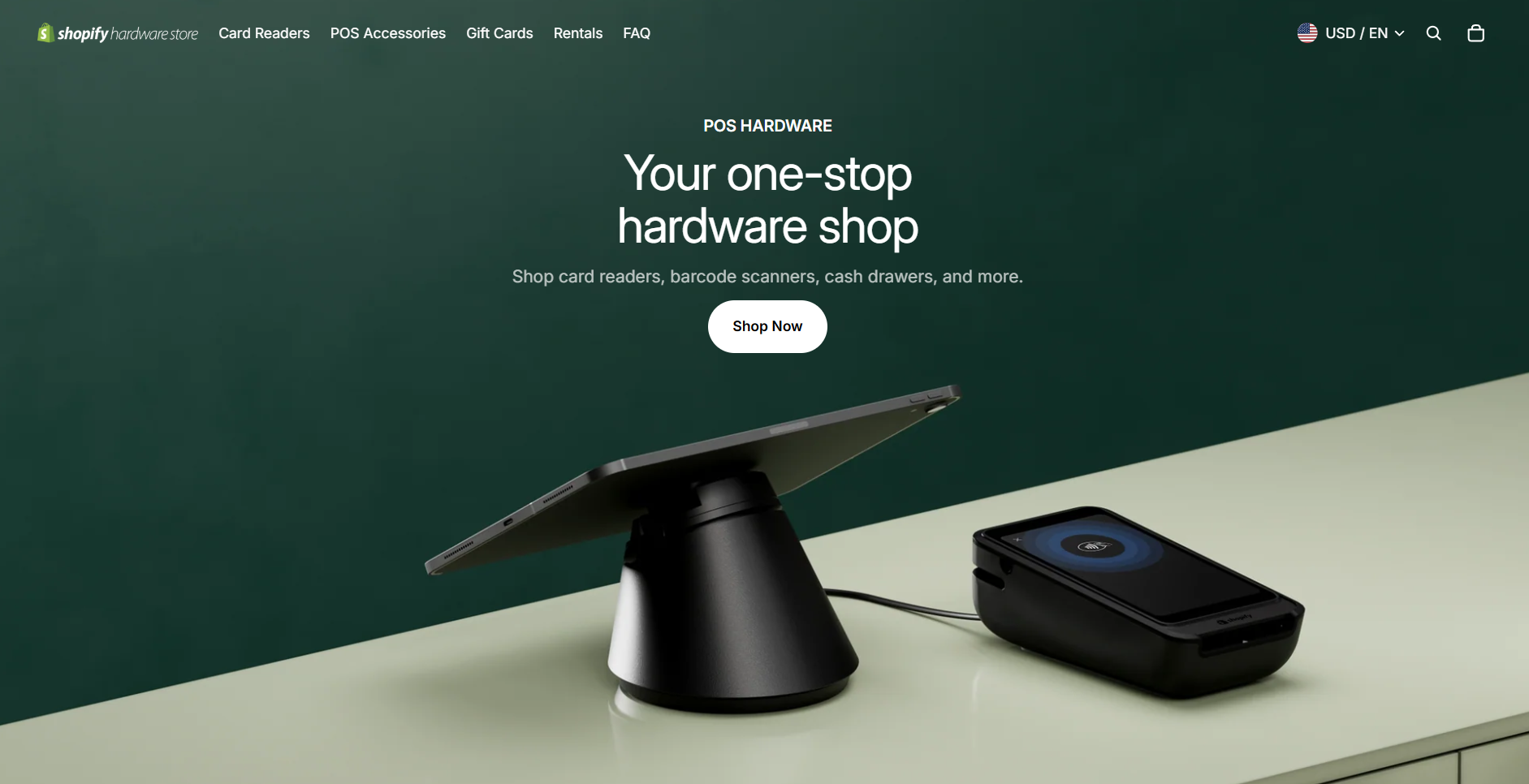
The easiest way to get equipment is through the official Shopify POS Hardware Store. Here’s why many merchants start there:
- Guaranteed Compatibility: Everything sold in the Shopify POS Hardware Store works perfectly with Shopify POS. No guessing about model numbers or compatibility issues.
- Support and Warranty: Shopify provides technical support for their hardware and offers a 30-day return policy. If something doesn’t work, you have recourse.
- Bundle Deals: Pre-configured bundles take the guesswork out of choosing compatible devices. They often cost less than buying pieces separately.
Shopify POS Hardware Setup: Step-by-Step Guide
Setting up Shopify POS hardware is designed to be straightforward, even for beginners. Here’s how to get everything connected:
Before You Start
- Charge Everything: Make sure wireless devices like card readers and barcode scanners are fully charged. Plug in devices that need power like receipt printers.
- Download the App: Install the Shopify POS app on your tablet and log in with your Shopify account.
- Choose Your Location: If you have multiple store locations, select the right one since hardware settings are location-specific.
Setup Process
Connect Your Card Reader
- Turn on your card reader and ensure it’s charged
- Open Shopify POS and go to Settings > Hardware
- Tap “Add hardware” and select your card reader model
- Follow prompts to put the reader in pairing mode
- Select your reader when it appears and complete pairing
- Test with a small transaction to confirm it works
Set Up Receipt Printer
- Connect your printer to power and turn it on
- For Bluetooth printers: Put the printer in pairing mode
- In the POS app, go to Hardware settings and add a printer
- Select your printer model from the list
- Print a test receipt to verify everything works
Connect Cash Drawer
- Use the provided cable to connect your cash drawer to the receipt printer
- In the POS app, enable cash drawer in settings
- Test by completing a cash sale – the drawer should open automatically
Pair Barcode Scanner
- Turn on your scanner and put it in pairing mode
- In POS settings, add hardware and select barcode scanner
- Choose your scanner when it appears
- Test by scanning a product barcode
Final Testing
Run a complete test transaction using all your Shopify POS devices:
- Use the barcode scanner to add a product
- Process payment with your card reader
- Print a receipt
- Confirm the cash drawer opens for cash sales
Best Practices for Choosing the Right Shopify POS Hardware
Selecting the right Shopify POS hardware is crucial for creating a smooth in-store experience and ensuring your retail operations run efficiently. Whether you’re just starting out or upgrading your current setup, these best practices will help you choose hardware that aligns with your business needs:
1. Consider Your Business Type and Size
- Pop-up shops and mobile vendors: Opt for portable solutions like Shopify POS Go or the Tap & Chip Card Reader paired with a smartphone or tablet. These are compact, wireless, and perfect for selling on the go.
- Brick-and-mortar stores: Invest in a more robust setup with a tablet stand, receipt printer, barcode scanner, and cash drawer. For a more polished checkout experience, consider the Shopify POS Terminal for customer-facing transactions.
2. Match Hardware to Your Existing Devices
- iPad users: Shopify offers optimized accessories like the Retail Stand for Lightning or USB-C iPads and wide hardware compatibility.
- Android users: Ensure any POS hardware you select is Android-compatible; not all receipt printers or stands work across both platforms.
3. Balance Budget and Functionality
- If you’re on a tight budget, start with the essentials: a tablet, card reader, and optionally a cash drawer or printer.
- When ready to scale, hardware bundles from the Shopify POS Hardware Store can offer better value and guaranteed compatibility.
- Reuse existing third-party hardware (like compatible barcode scanners or printers) if possible, as long as they’re supported by Shopify.
4. Choose Between Mobility and Fixed Setup
- For line busting or personalized in-aisle service, use mobile-friendly tools like POS Go or a handheld card reader.
- For countertop environments, fixed setups with tablet stands and customer-facing displays help streamline checkout and maintain a clean retail look.
5. Align with Payment Preferences
- If you don’t accept cash, you can skip the cash drawer and receipt printer to save costs and space.
- For full-service stores, ensure your setup supports tap, chip, and swipe payments, especially with Shopify’s Tap & Chip Reader or Terminal.
6. Prioritize the Customer Experience
- A customer-facing display (like the Shopify POS Terminal) improves transparency and engagement at checkout.
- Fast scanning and digital or printed receipts enhance the speed and professionalism of each transaction.
By keeping these best practices in mind, you can build a Shopify POS hardware setup that’s tailored, scalable, and ready to support your business as it grows.
Enhancing Your Shopify POS Hardware with DingDoong
While your Shopify POS hardware excels at processing in-store sales, modern customers expect more flexibility. They want delivery and pickup options, but managing these alongside your regular POS operations creates a coordination nightmare.
Here’s what happens: customers place delivery orders, but there’s no easy way to coordinate timing through your POS system. Pickup orders get scheduled manually, leading to double bookings during busy periods. Your expensive hardware becomes just one piece of a fragmented puzzle.
This is exactly why DingDoong was designed to integrate with existing Shopify POS setups. Instead of replacing your carefully chosen hardware, DingDoong enhances what you already have.
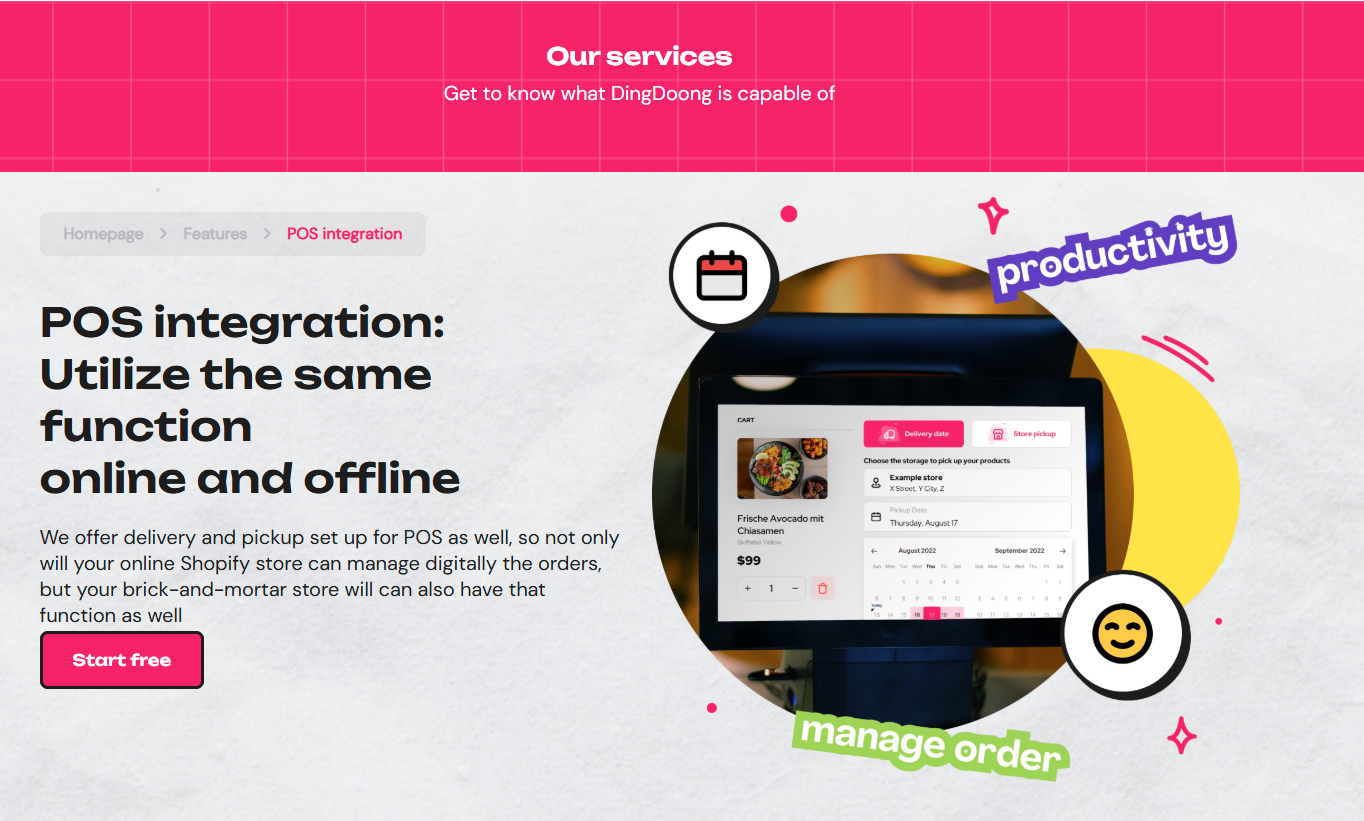
DingDoong connects directly to your existing Shopify POS setup. Same tablet, same workflow – but now delivery and pickup orders sync automatically with your in-store sales. Everything flows through one system instead of three different apps.
After integrating DingDoong into their POS system, Good Time Pastry experienced an 84% revenue increase over five months. The owner noted that syncing everything in one place helped turn hectic rush hours into smooth, controlled operations.
DingDoong’s team integrates with whatever Shopify POS hardware you’re already using. No new equipment, no staff retraining – just enhanced capabilities for the system you’ve already invested in.
Your POS hardware is great for in-store sales. DingDoong makes it great for everything else too. Ready to complete your setup? Try DingDoong free and turn your hardware into a complete business solution.
Shopify POS Hardware Updates You’ll See in 2026

In 2026, Shopify continues to double down on retail reliability and in-store performance, with major updates centered around new POS hardware and deeper in-store commerce capabilities. These improvements are designed for merchants who run omnichannel businesses and need rock-solid, always-on retail systems.
POS Hub: A New Standard for In-Store Reliability
The biggest hardware highlight is the Shopify POS Hub — a new central device built specifically to eliminate common in-store failures. What’s new and why it matters:
- Wired-first connectivity: No more unstable Bluetooth pairing. Card readers, scanners, and printers connect directly via USB.
- Built-in processing power: Powered by an ARM Cortex-A7 MPU, the POS Hub handles data processing locally, reducing reliance on the tablet.
- Always-on stability: Built-in health monitoring, automatic fault recovery, and firmware updates ensure your POS keeps running during peak hours.
- Flexible ports: 3 USB-A ports + 1 USB-C port for multiple peripherals.
- iPad compatible: Works seamlessly with iPad via MFi Authentication Coprocessor.
In short, POS Hub turns your retail setup into a true commercial-grade system, not just a tablet with accessories.
Faster In-Store Operations (Bonus Improvements)
Alongside hardware, Shopify also improves how staff work day-to-day:
- Quick Count with POS: Scan and update inventory instantly from the POS (POS Pro only)
- Unified POS customization editor: Edit smart grid, customer display, receipts, and lock screen in one place
- POS-compatible barcode scanners: Expanded support for HID-compatible scanners with guaranteed stability
Subscriptions on POS: Recurring Revenue, In-Store
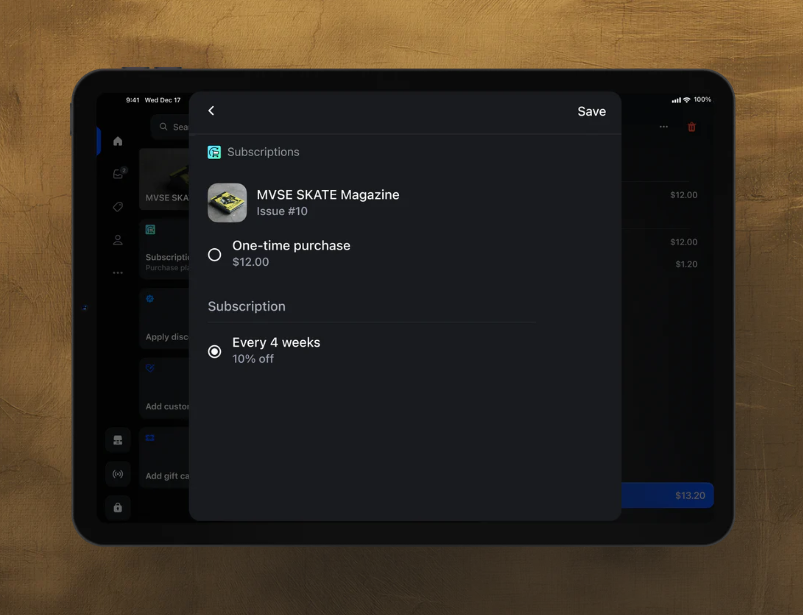
Subscriptions are no longer limited to online checkout. With Subscriptions on POS, merchants can now:
- Sign customers up for subscriptions directly in-store
- Use the Shopify Subscriptions app within POS
- Sell recurring products like magazines, memberships, refills, or clubs at the counter
This unlocks a powerful use case for retail brands: turning one-time in-store shoppers into long-term subscribers, without any extra steps. These updates signal a clear direction:
- Shopify is treating retail as mission-critical, not secondary to online
- Hardware is becoming invisible and dependable, letting staff focus on selling
- POS is evolving from a checkout tool into a full commerce operating system
If you’re running physical stores or planning to scale retail in 2026, these POS hardware and subscription updates will be foundational to how Shopify stores operate.
Shopify POS Hardware FAQs
What are the 4 main types of POS systems?
POS systems come in four basic styles:
- Desktop POS – Traditional systems with dedicated computers, usually found at checkout counters in stores
- Cloud-based POS – Systems that work through the internet, so you can access them from anywhere
- Mobile POS – Systems that run on smartphones or tablets, letting you take payments anywhere in your store or at events
- Self-service POS – Self-checkout systems where customers scan and pay for items themselves
Can I use my tablet or smartphone as POS hardware?
Absolutely! With Shopify, you can turn your tablet or smartphone into a complete POS system. Just download our free POS app on iOS or Android devices. The app lets you:
- Accept all types of payments
- Manage your inventory
- Track sales and reports
- Handle customer information
You can also add extra hardware like card readers and receipt printers to make your mobile setup even more powerful. It’s perfect for small businesses or selling at events.
How does POS hardware work with my existing software?
Shopify’s POS hardware is designed to work seamlessly with our software – no complicated setup required. Here’s how it works:
- Our hardware connects directly to the Shopify POS app
- Everything syncs with your Shopify account automatically
- Sales data, inventory, and customer info updated in real-time across all your sales channels
- Most hardware is plug-and-play, so you can start using it immediately
Whether you’re selling online, in-store, or both, everything stays connected and up-to-date.
What’s the difference between POS hardware and software?
Think of it this way: POS Hardware = The physical tools you can touch
- Card readers that process payments
- Cash drawers that store money
- Receipt printers that give customers receipts
- Tablets that display your products
POS Software = The digital brain that runs everything
- The app that manages your sales
- Systems that track inventory
- Programs that store customer information
- Reports that show how your business is doing
You need both to run a complete POS system. The hardware handles the physical parts of selling (taking payments, printing receipts), while the software manages all the data and business logic behind the scenes.
Conclusion
The right Shopify POS hardware transforms checkout from a potential problem into a smooth, professional experience. Whether you choose official devices from the Shopify POS Hardware Store for simplicity or mix in third-party options for cost savings, the key is matching hardware to your business needs.
Start with the basics and expand as you grow. Most importantly, test everything thoroughly before relying on it for daily operations. With the right Shopify POS devices, you’ll have a reliable system for serving customers and managing sales.
Try DingDoong Free
Add a date picker to your Shopify checkout today — no developer needed.
Start free trial →

![12 Rental Dress Business Ideas [2026 Trends Updated]](https://dingdoong.io/wp-content/uploads/2026/09/rental-dress-business-ideas.png)